A brief guide for making a map Relief
-
@black_elk Do you know how to create v3 or v4 style relief tiles?
-
Yeah so for that what you'd want to do is find an old roadmap or railmap, and use that to create an abstract pattern.
https://thegimptutorials.com/how-to-use-patterns/
Then you'd select the white of your baseline and use Edit tab > Fill with Pattern
Reduce the opacity/saturation of that fill to create the desired effect.
For the WW2 maps I believe the pattern fill is totally desaturated. Not sure on the opacity but probably something like 25% would work.
To make it look like Bung's you'll want to invert or rotate the roadmap image being used to create the pattern, so that any text within that pattern becomes illegible, otherwise it will probably be too recognizably roadmap-y.
I don't have the image that Bung used for the World War II map pattern initially, but if you want to copy it, you can reconstruct one of those reliefs using Map Creator Tools > Other: Optional Things > Run the Tile Image Reconstructor
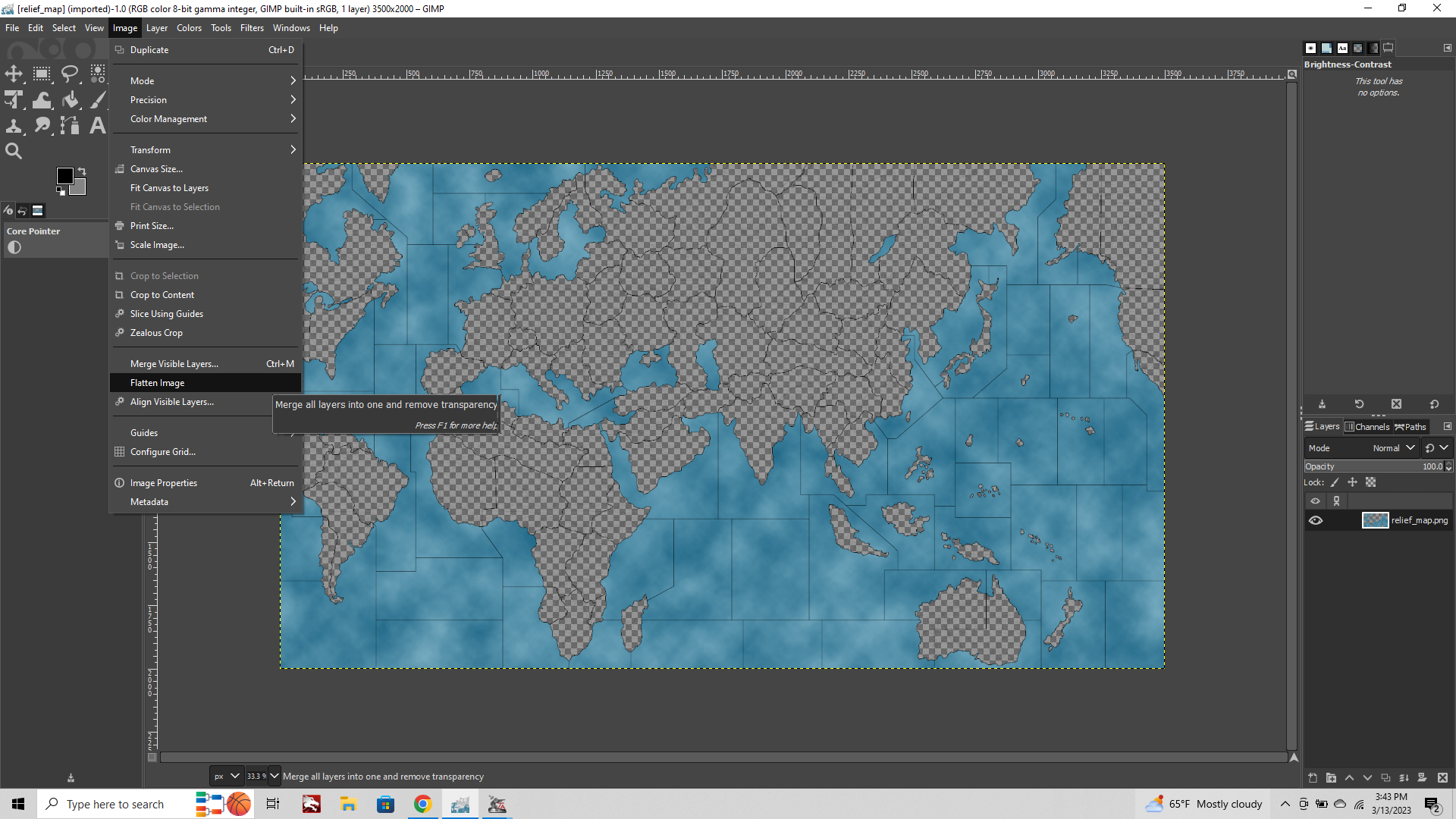
After you got the single image reconstructed fire that up in GIMP.
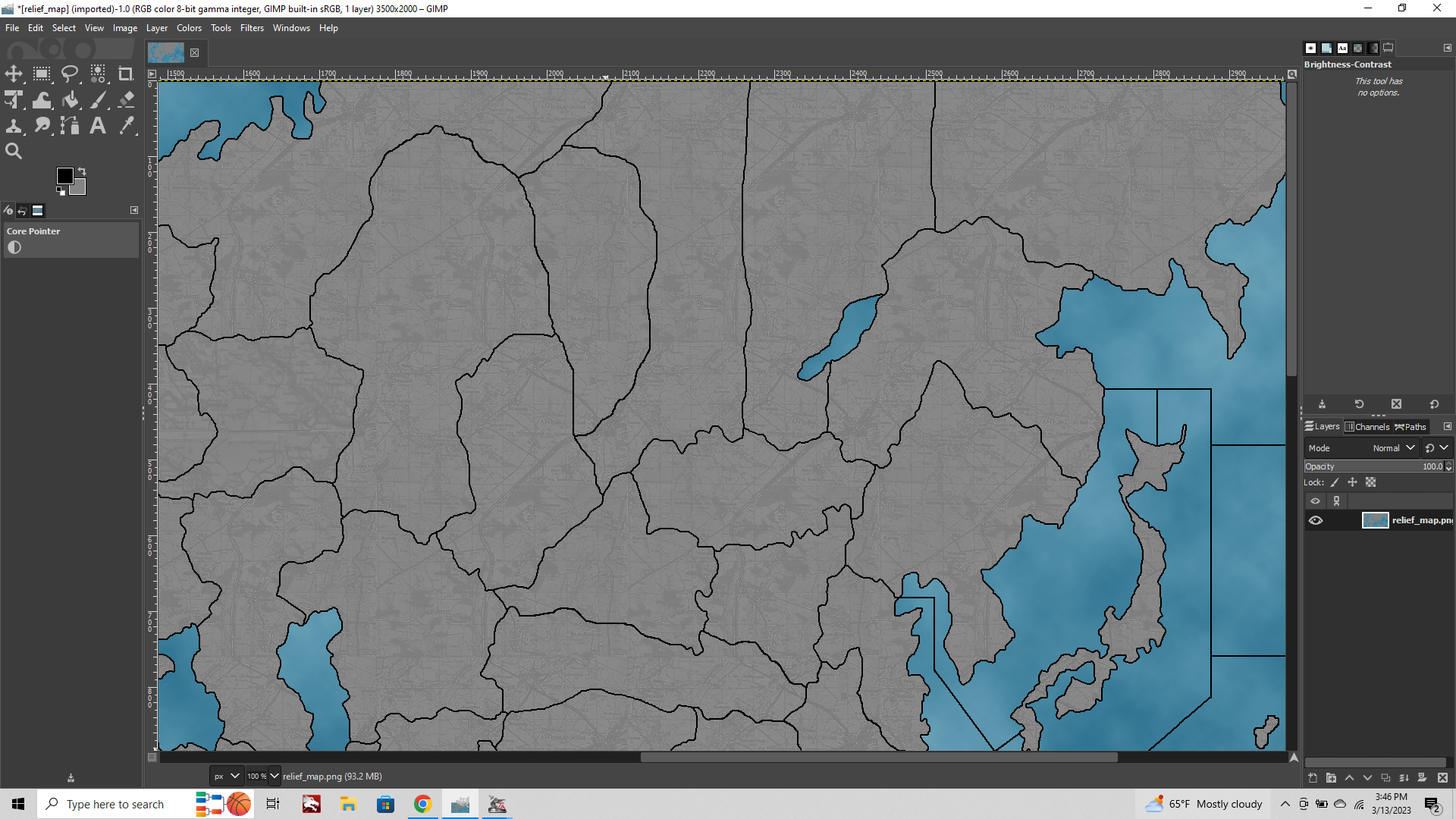
Then Image tab > Flatten Image, using 50% gray as your background color to get something more like this...
Use that to create a selection of the pattern to copy from one of the larger tiles.
You can reduce the opacity once you have an image or portion of the image to use as your pattern.
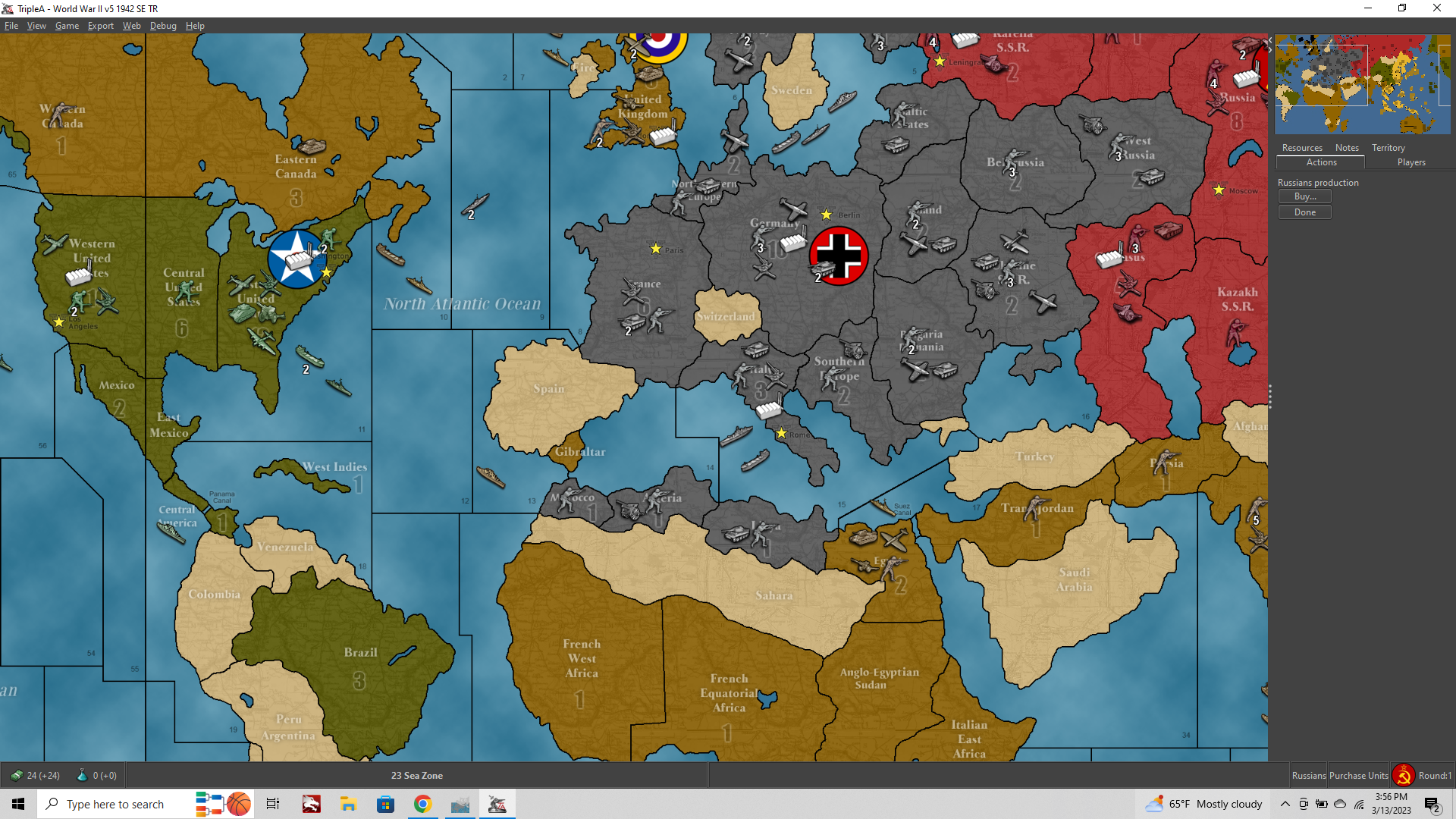
If you look closely at this v5 example, you'll notice that the pattern is repeating. Compare the pattern in Soviet Far East to Yakut S.S.R. and Archangel.
Depending on which old roadmap type image you select to create the pattern, you might use a series of flips or rotations to disguise when this occurs. Or create a couple different patterns to fill the tiles individually instead of all at once.
If the fill is for tiles that are further apart, it will also be somewhat harder to notice a repeating pattern. See Western Canada/Eastern Canada compared to Brazil and West Africa, or in Europe with Baltic States/Belarus.
Anything you copy to the clipboard can be used to create a pattern.
Check out the Patterns tab at the top right of the screen.
The first tab is brushes, next one over is patterns.
The first swatch will show as a little white square = no pattern, when you first launch GIMP.
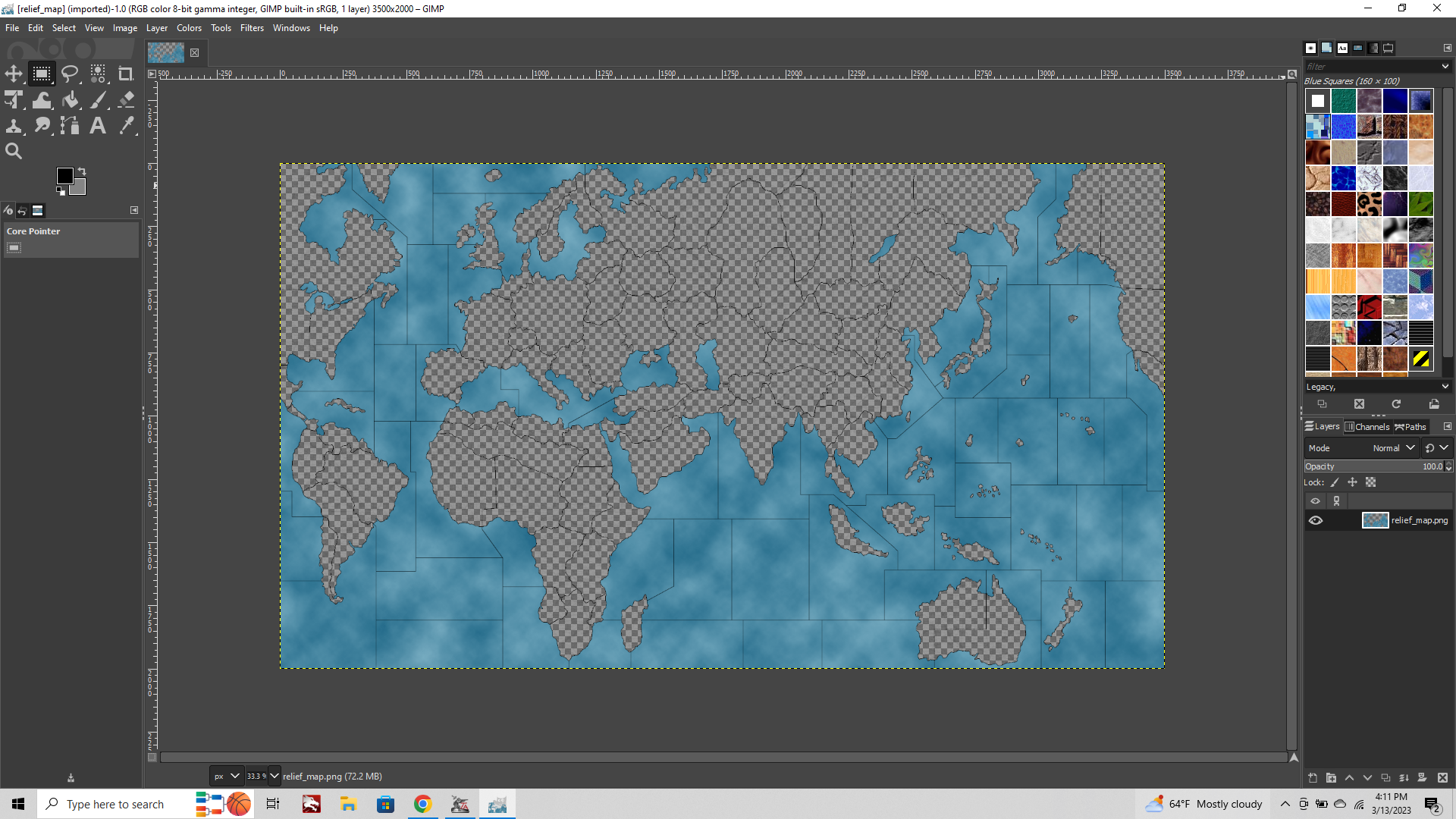
When you use your marque to copy a selection from an area within the reconstructed relief tiles, that pattern will be replaced with whatever you copied.
So in this case you can see it's now the stuff inside the marquee that we copied from the Germany tile.
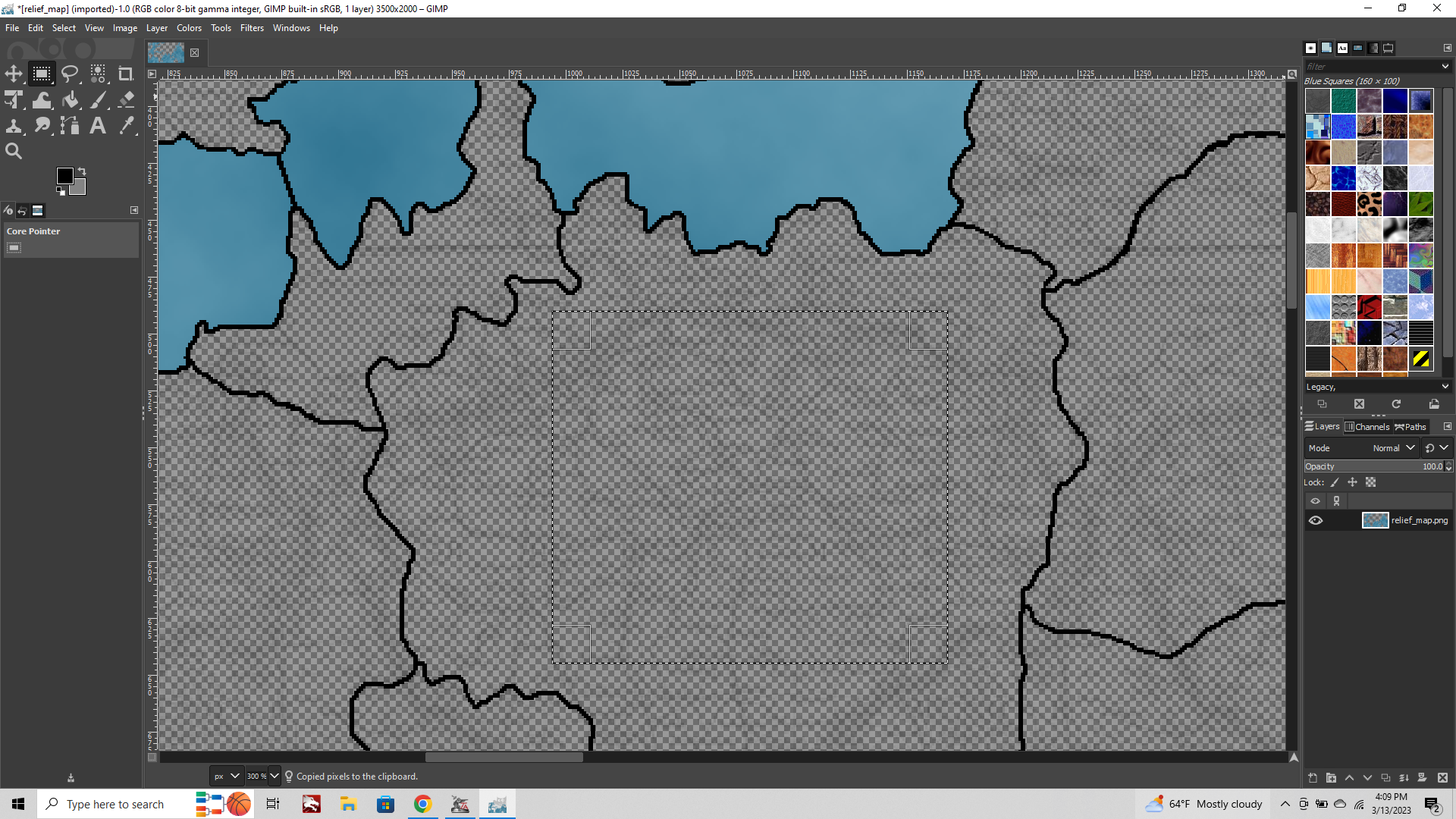
You can copy the reduced opacity image, or flatten first. Main reason to do the flatten thing is just so that you can see the image you're working with. Otherwise it can be hard to see on screen with the reduced opacity checkerboard visual, unless you're zoomed way in.
You can also vary the patterns or combine these patterns with the topo stuff to differentiate only certain tiles. Like if you wanted to have some spots more urban looking for cities and such, you overlay the pattern on just those tiles to get a vibe like that, like you see in some of Hepster's maps.
Finally you can do something pretty similar without actually needing a pattern. Just take an old rail map image and desaturate/reduce opacity. You can invert/flip if you need to disguise the text, or just find some regional road/rail maps that work for what you got going, and stitch em together. Then copy paste your Black/Blue from the baseline over that image rather than a topo. Should create a pretty similar look to Bung's, without having to worry about the image being repeated, like it would as a pattern.
Here's an example taking a period image of Soviet railways, then flipping/desaturating it.
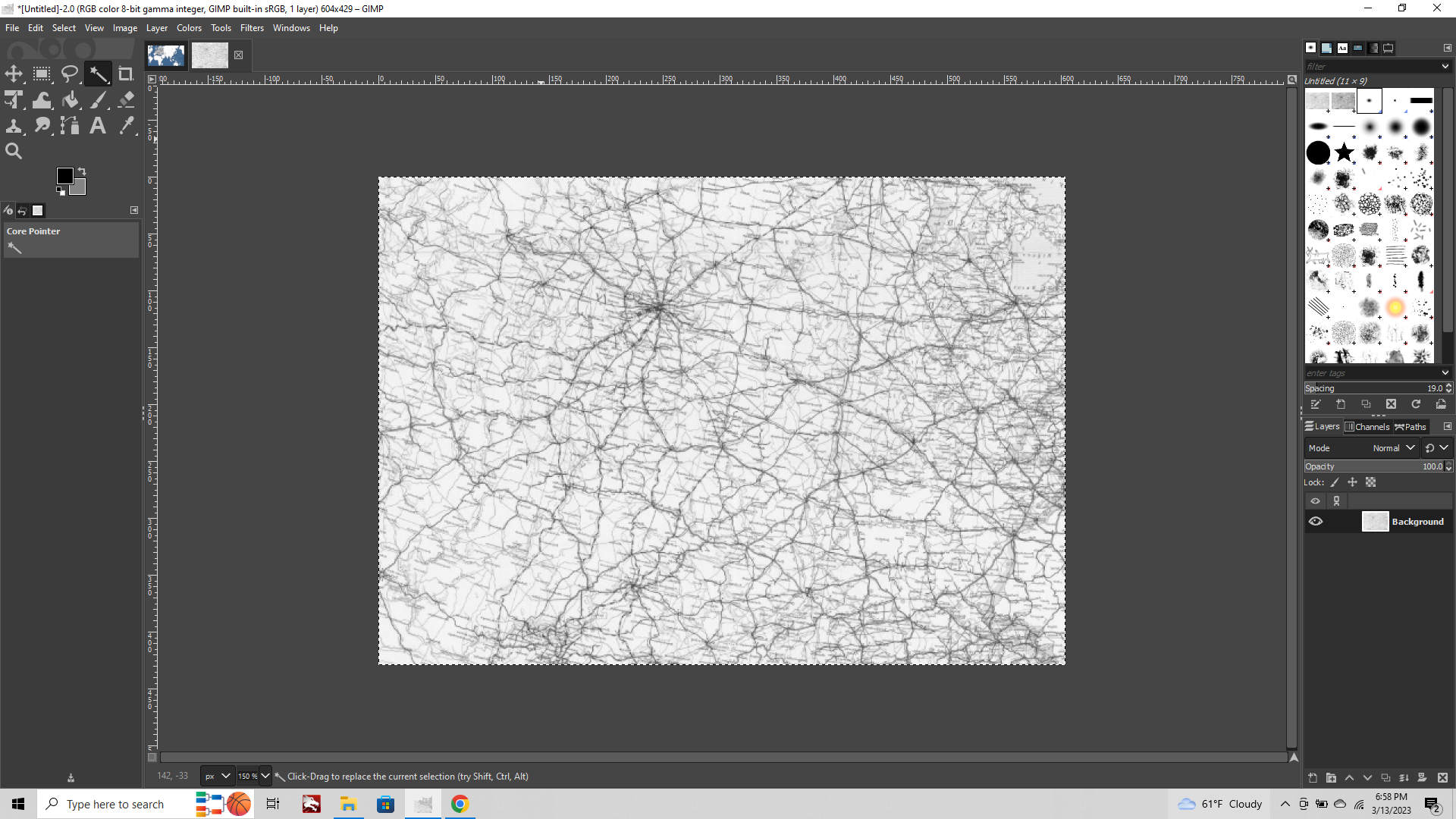
Pasting the baseline layer on top of this, you can use the fuzzy select tool to grab the white and delete it 1 tile at a time.
This will open a window to show the railway image layer beneath. You can stick in another different railway image on another layer, and just kinda add them in as you go. This is more laborious, but you'll also have a bit more control, and you can choose different images instead of repeating the image. I think pattern is usually something like 256px squares repeated by default, but if you do it manually you can do whatever size works from your selection. You can also warp/transform/rescale the same roadway image and use it twice that way.
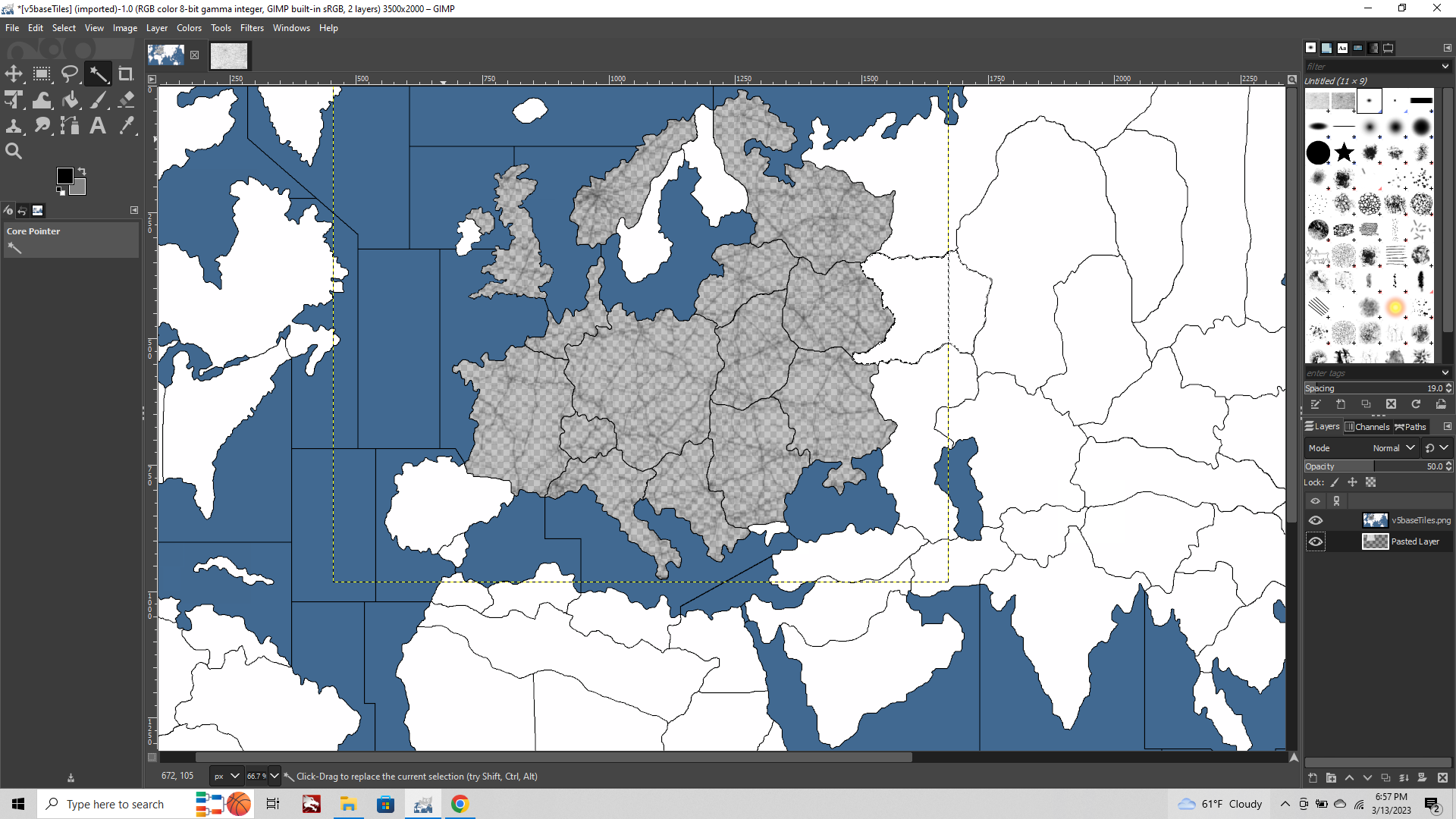
Once you've got what you like, you can reduce the opacity of those layers to be consistent, till it presents the way you want it to (overlay onto your colored-in baseline map to preview how it will paint inside tripleA).
Export the image and run it through the tile breaker in the map tools to get your tiles.
Oh also, just a quick note, the latest GIMP combined a few tools in the display. The "select by" color and "fuzzy select tools" now have the same position in the tools. To switch between them click the little arrow at the bottom right of the tool icon to switch to the fuzzy select magic wand.
Hopefully that helps
-
@black_elk Thank you so much. Unfortunately I could't manage to create it. I hope it will be helpful to other folks.
-
If you want to post your completed baseline, I can throw something together for you and save it out as a .xcf project file with the image still in layers, that way you can just load that into GIMP to see what I'm doing. It may be helpful just to see how it lays out that way. As you make more modifications across more layers the final filesize of the image can beef up pretty quickly, so I'd probably have to put in on dropbox. Most things we'd do in GIMP involve creating a selection from the baseline image, then creating or pasting-in/modifying stuff on a new layer. Reordering those layers, or adjusting the opacity of those layers, to create different visual effects for the relief. GIMP is pretty cool, but it can be a bit unwieldy if it's the first time learning how to do stuff like this or using a program like this. Usually for me if something goes awry with the relief, it's from having the wrong layer selected, or not having the right layer on top when I save it out to create the desired visual hehe. Still happens to me all the time even after going the process a bunch of times. Anyhow, if you got the base image I can show you how it looks before the layers get collapsed into a single image that way.
-
It is the base image;
https://i.ibb.co/Sw0H554/fortress-world-pale.pngIt is the base plus a sea motif which can be changed or untouched.
https://i.ibb.co/wy17q0x/fortress-world-sea.pngIt is transparent version;
https://i.ibb.co/FKX7qnz/fortress-world-relief.png -
OK here's something to get you started.
https://www.dropbox.com/s/vps6mw75i3izyt6/fortress-world-pale-rail.xcf?dl=0
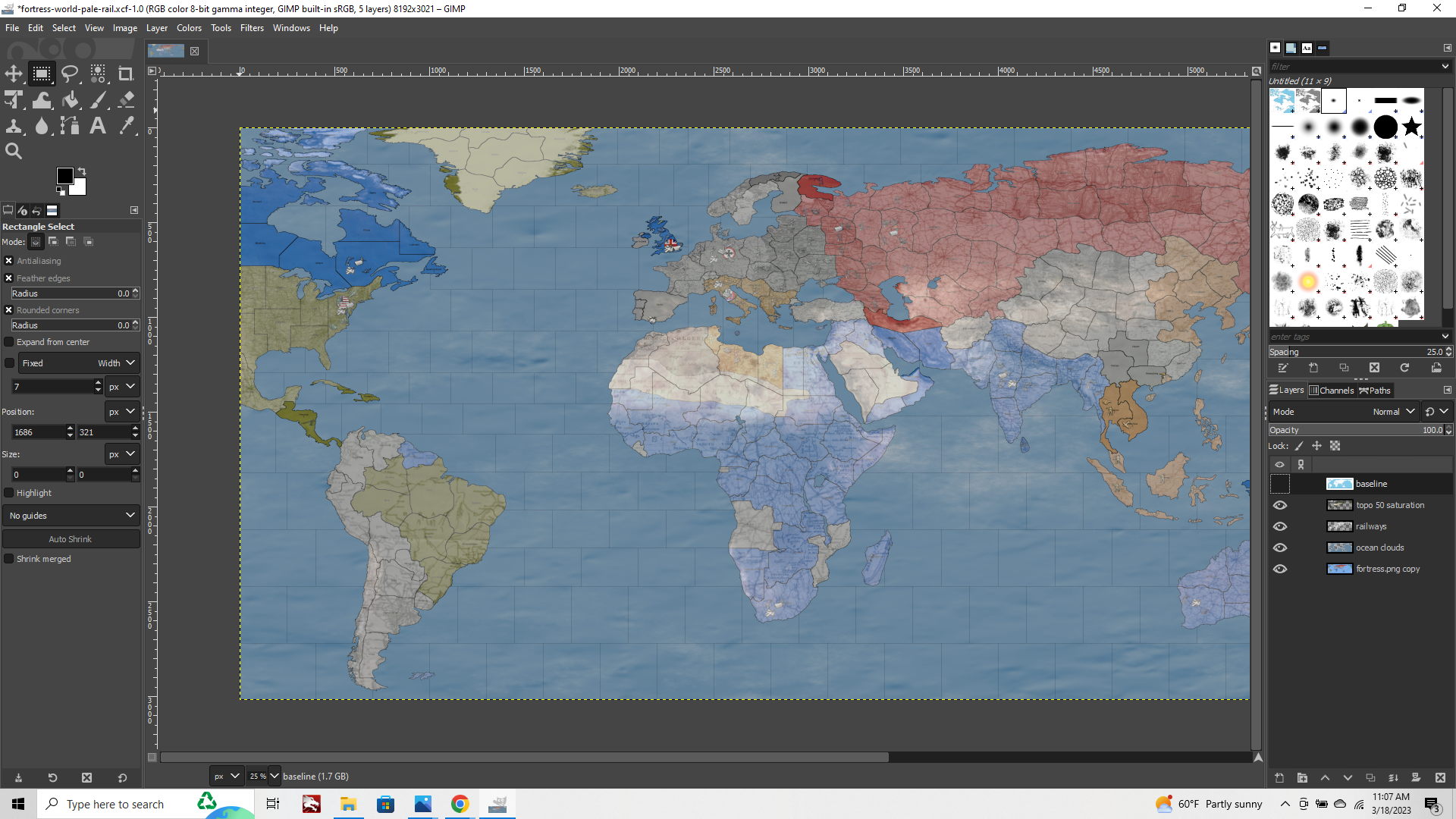
When you open the .xcf file using gimp you'll have a few layers. Your baseline, a topo, and a roughly stitched together map with a rail/road pattern going on. Putting the topo and the rail image together we can make something that looks a bit more like this... (I don't have a paintmap other than the image you posted in your thread, so you'll see the units/decor also semi transparent here, since that's the pic I used.)
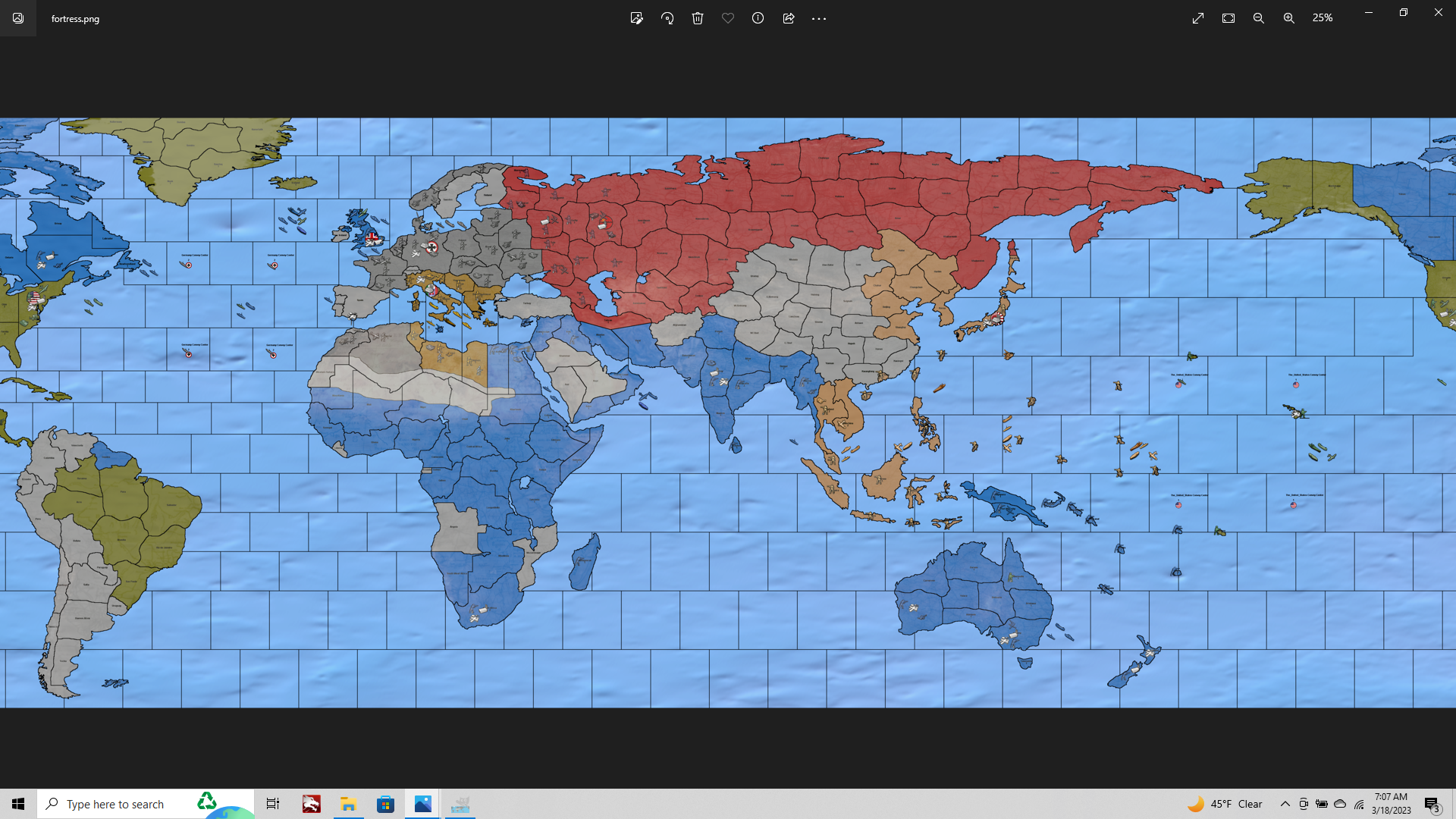
To create that we're basically combining a layer that looks like this...
And another layer that looks like this...
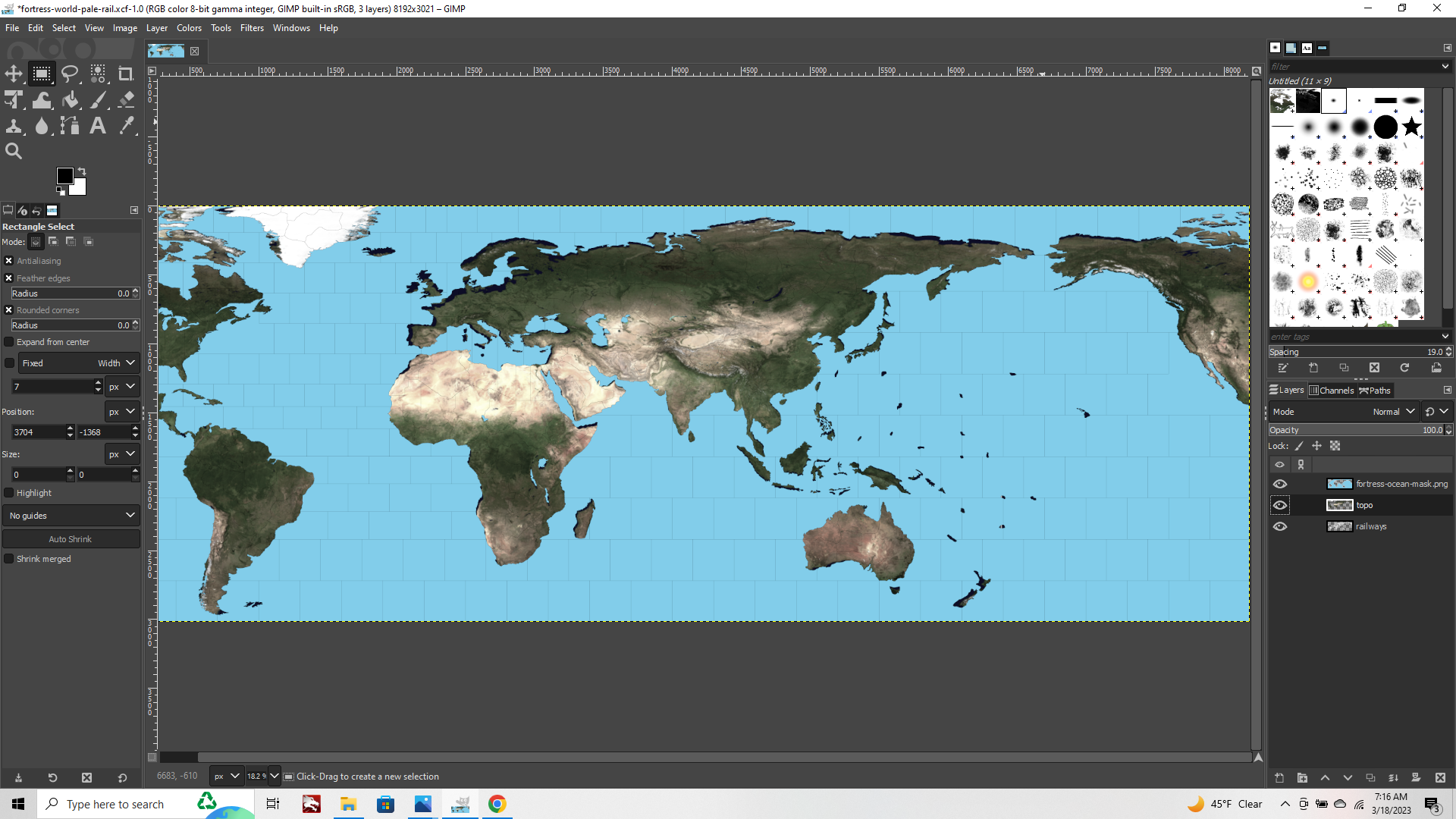
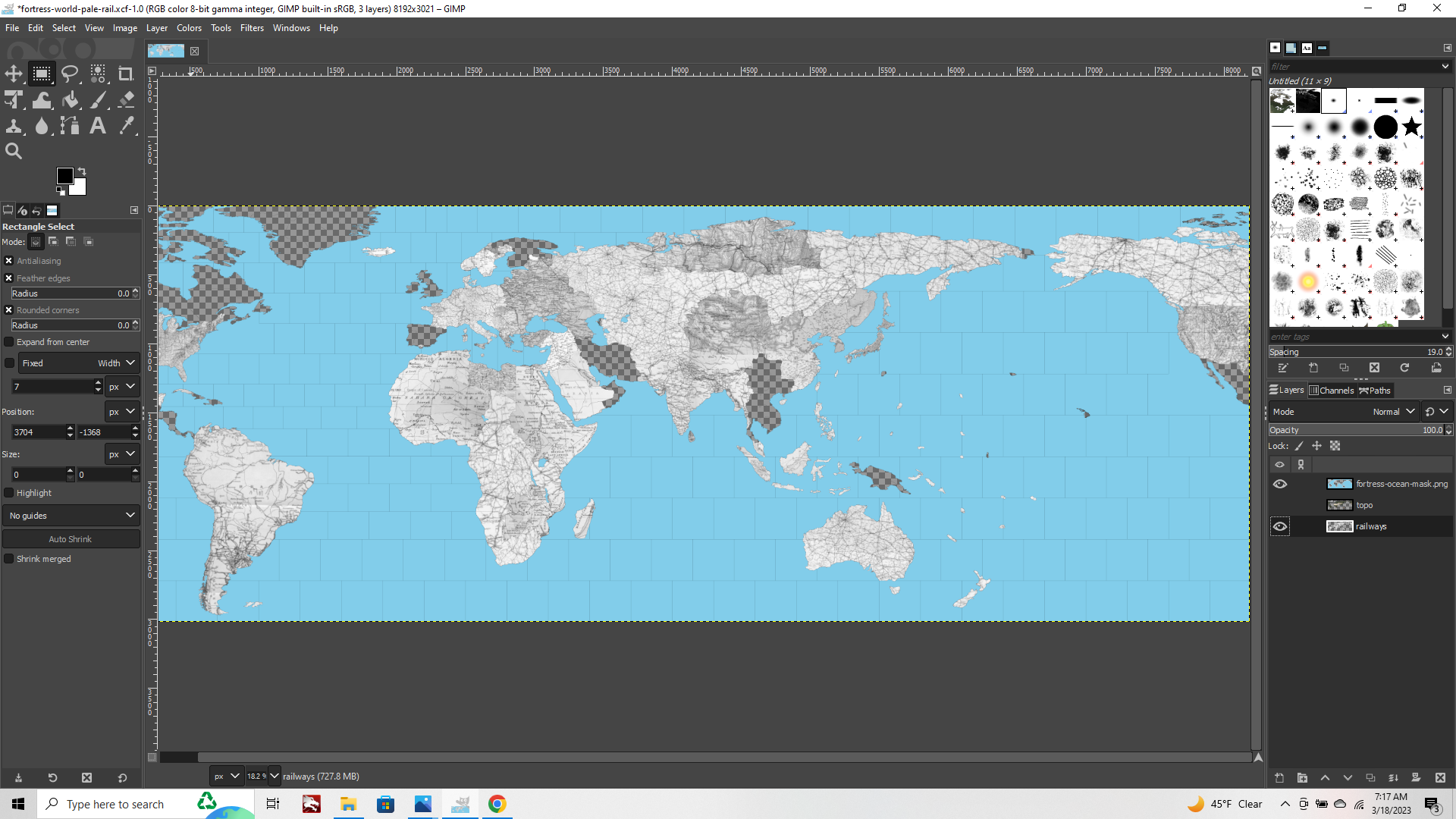
Reducing the opacity, or brightness/contrast of each layer separately, until you get something that you like.
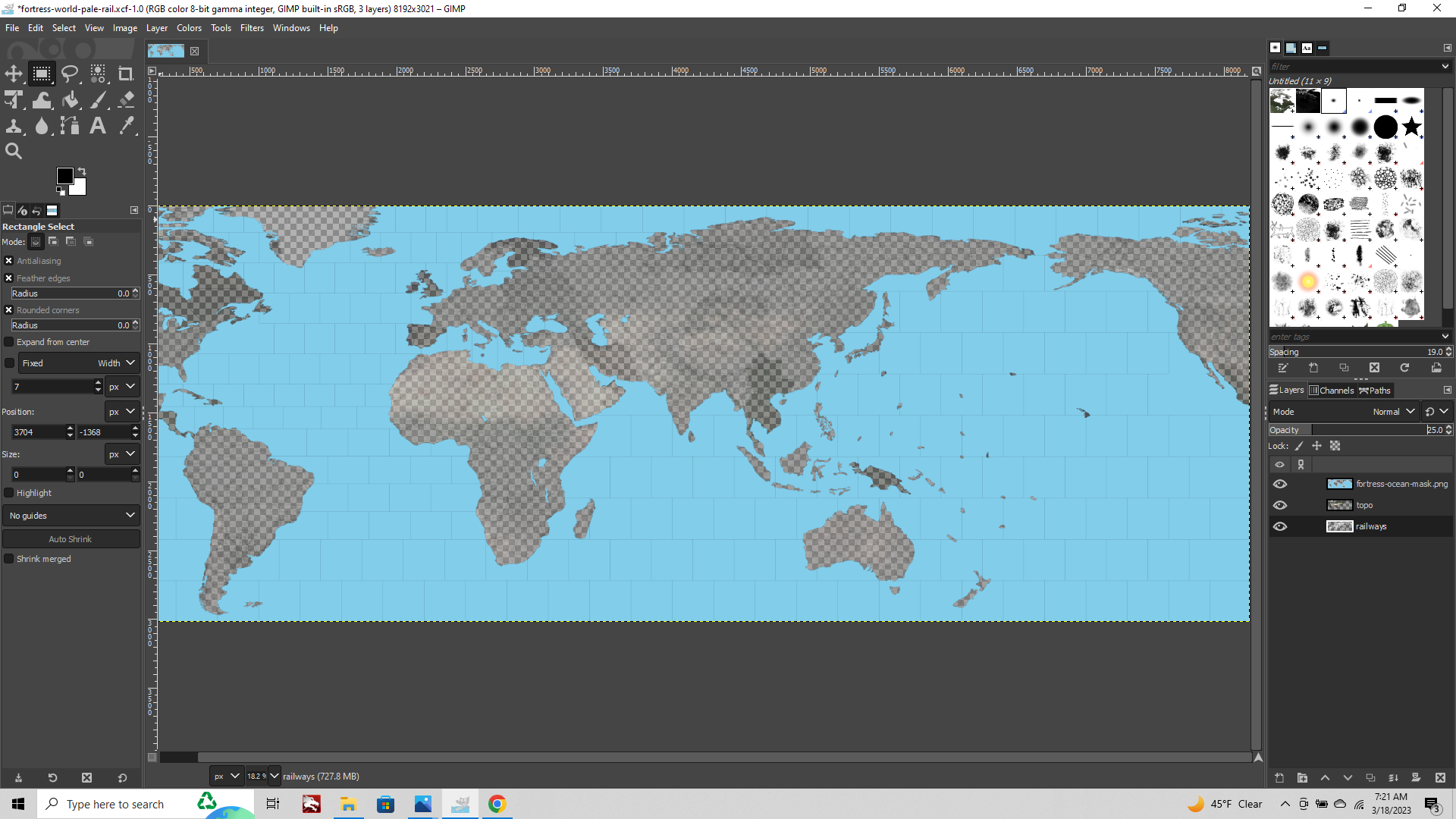
When you open the project in gimp, you'll see both layers are set to 25%, but you can increase to 100% to see what's there, which should look like the pair above when you do.
If you add to the layers or make adjustments, do this at 100% opacity, then dial down the opacity after you've made the add/change to that layer.
Using the eyeballs you can merge layers only by what's visible. So basically when you add a new layer/image you can merge this to the rest of rail layer by closing the eyeballs on the other stuff to make them invisible, then Layer tab > "merge visible layers." With the eyes only open on the stuff you want merged.
You can see where I lazed out a bit there on adding the rail/roads in Canada and few other spots hehe, but you can finish up those tiles or switch stuff around to suit whatever look you're trying to achieve with the fuzzy select tool.
Basically you bring up your baseline (click the eyeball to make it visible), and use it to make your selections. Click the white of a tile with the fuzzy select tool, hit the eyeball again to make the baseline layer invisible. Now when you switch to a different layer the selection marquee will still show the area you had fuzzy selected on the now invisible baseline layer. You can copy/paste stuff just into the spots you want to adjust that way, with the exact shape of the tile all ready to go.
Paste in whatever and only copy the stuff into a single tile at a time like that, to keep it simple. Using the fuzzy select tool to add to or delete stuff from that layer, then merge visible to the layer you want to tweak. Adjust the levels on these layers to get different looks, depending on how much of the under image you want to show through.
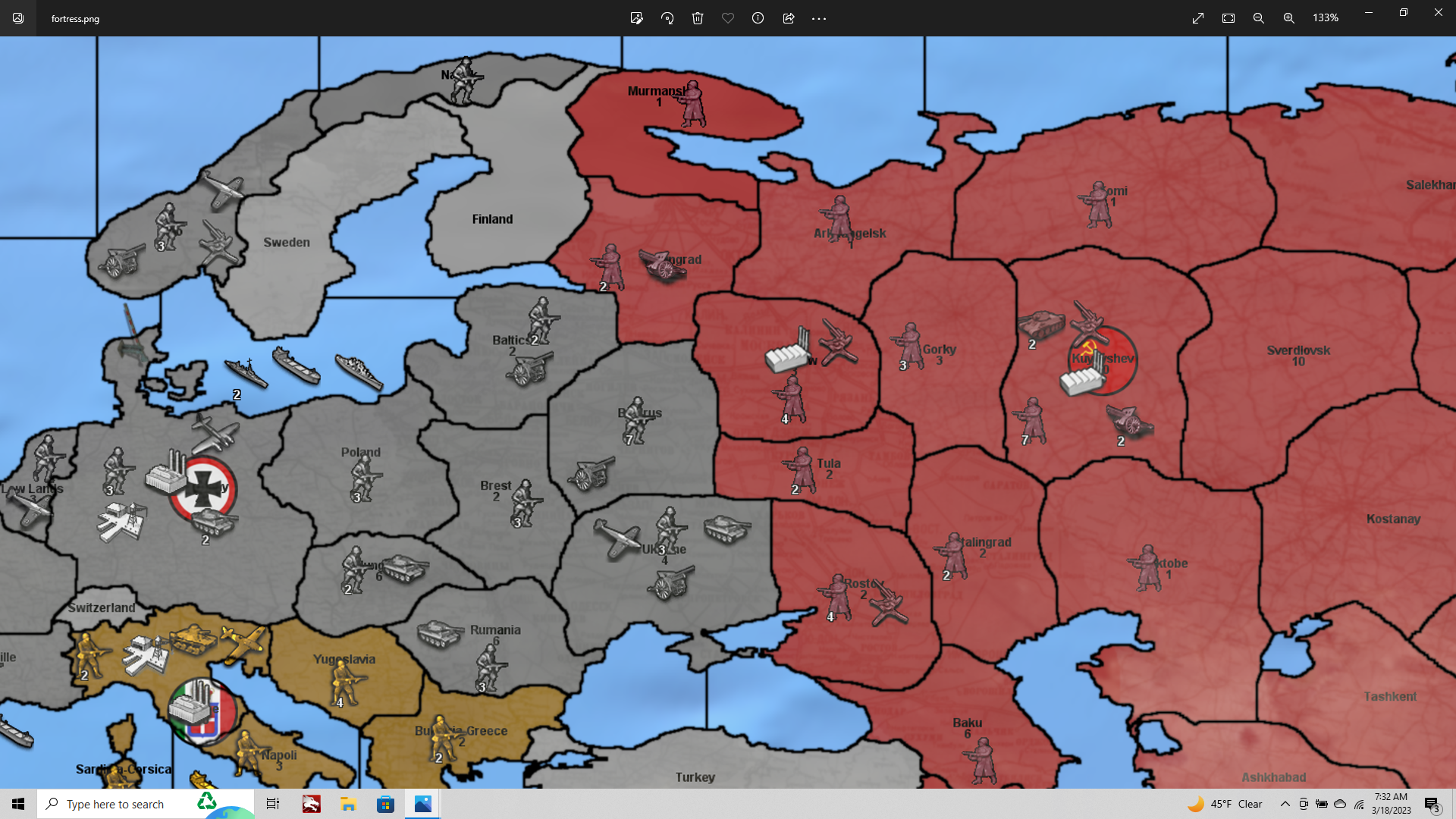
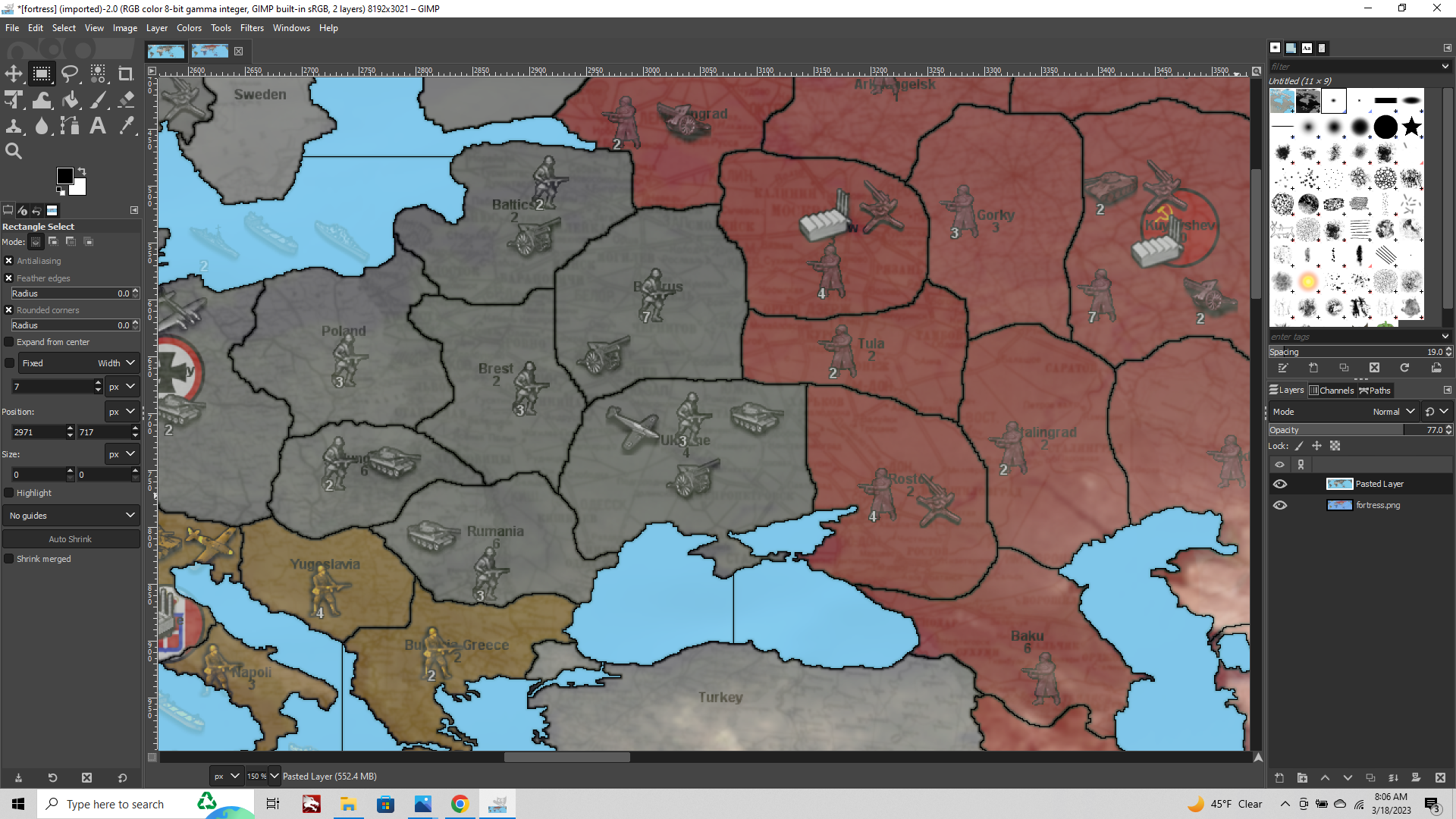
To preview what will happen in tripleA, you can use your painted baseline (just the basic national colors, without the units so they don't go ghost on ya like they did in the image I was using heheh). To see how the changes you're making to the other layers will interact with your hex colors, use that map as the bottom layer with the rest laid on top.
To change the sea zone stuff, you can use the baseline to create a selection for an ocean mask, to select only the areas that have those blues.
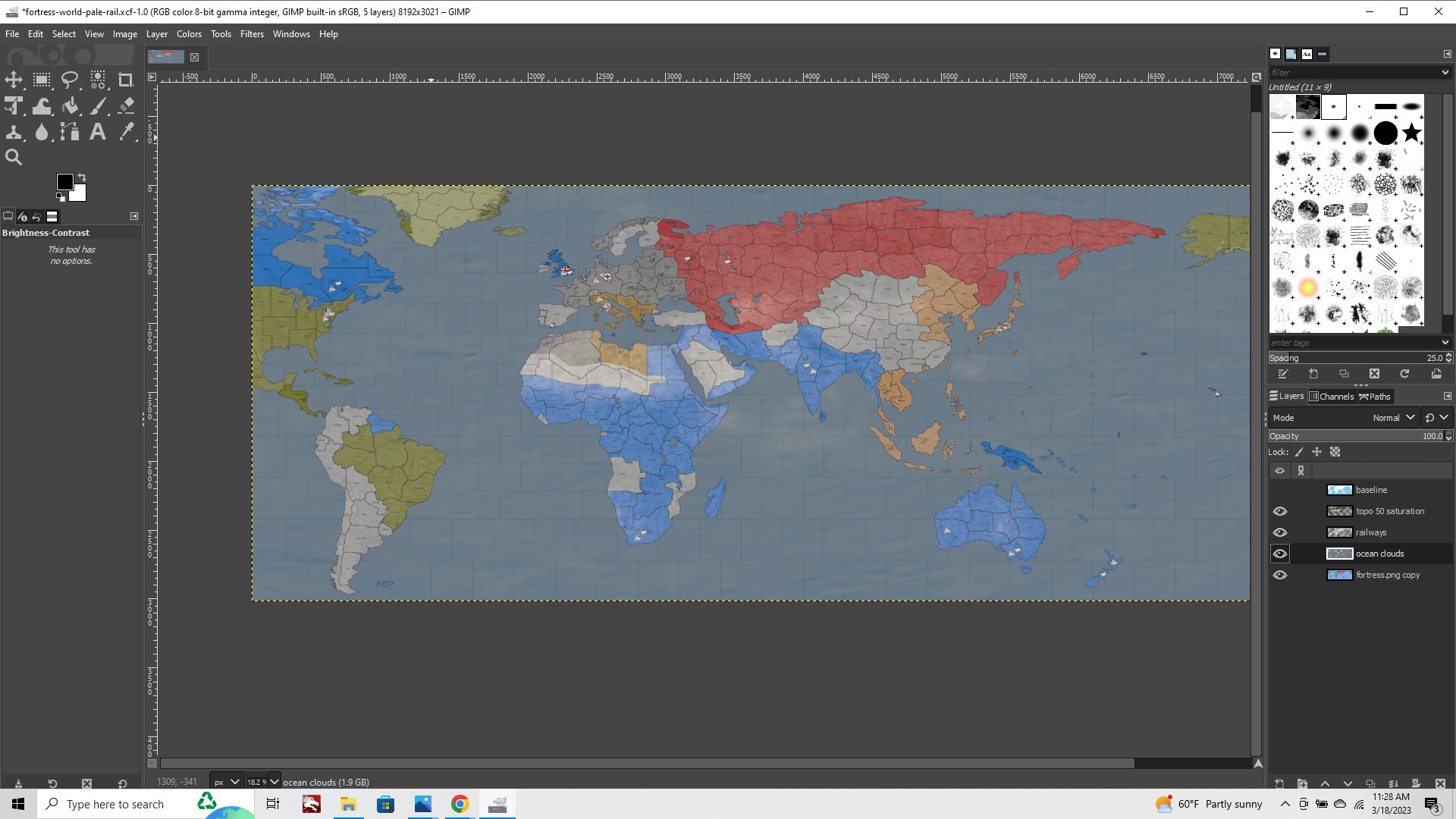
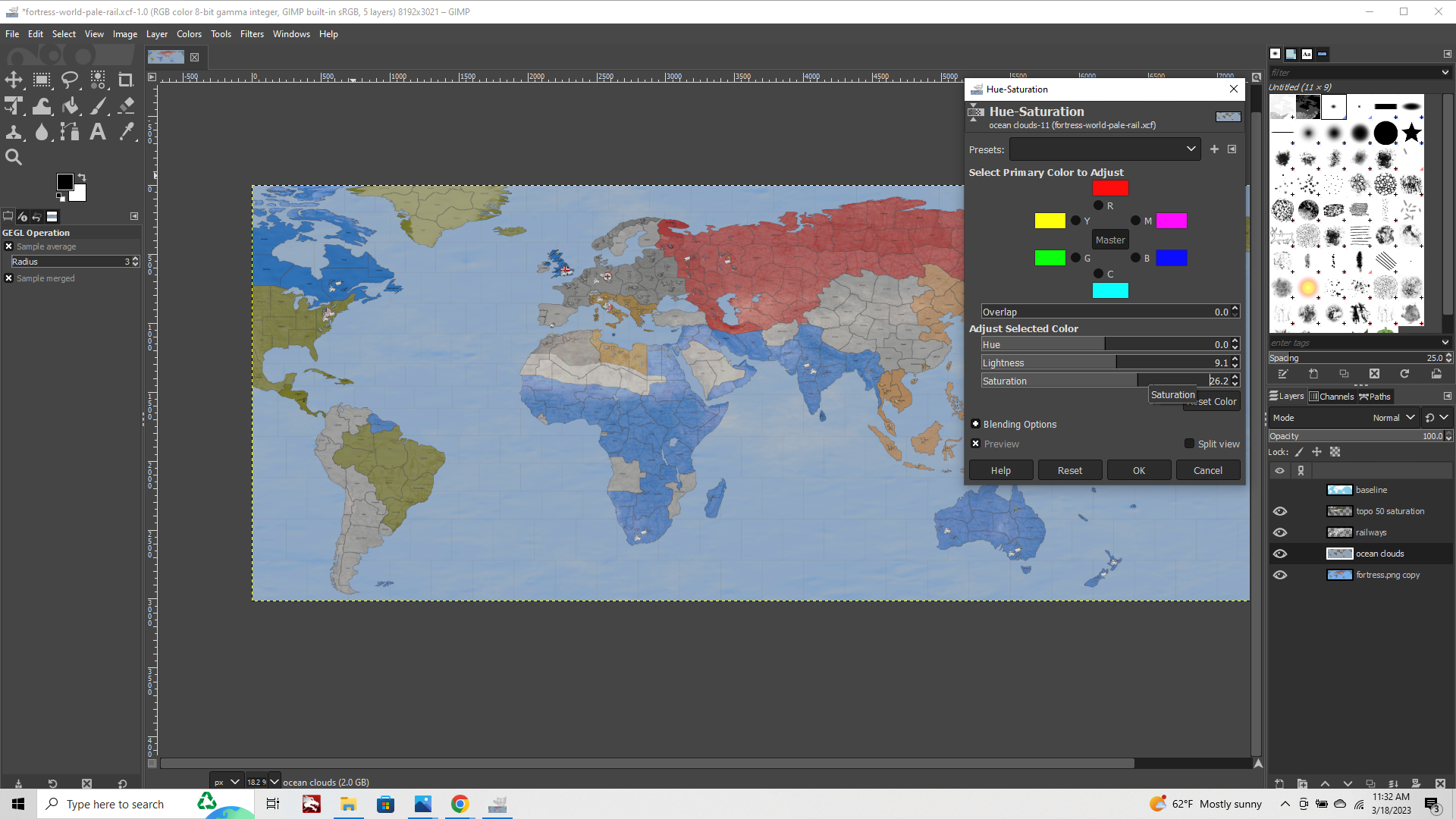
I did a layer with a simple cloud effect combined with that image you posted above. Doing that you can adjust the color values or opacity/brightness of just those areas without the effect applying to the other layers, so you can change the hue or brightness till the ocean looks the way you want. You can add in decor, labels etc. by just adding more layers on top. Using the eyeballs on off, you can see each layer in isolation.
Here's example of just adjusting along one dimension, the opacity of the layers. Showing how it looks when you go from 5% opacity on up in 3 screens. You can do a lot just with that to find the look you're after, like how pronounced you want the relief stuff to be.
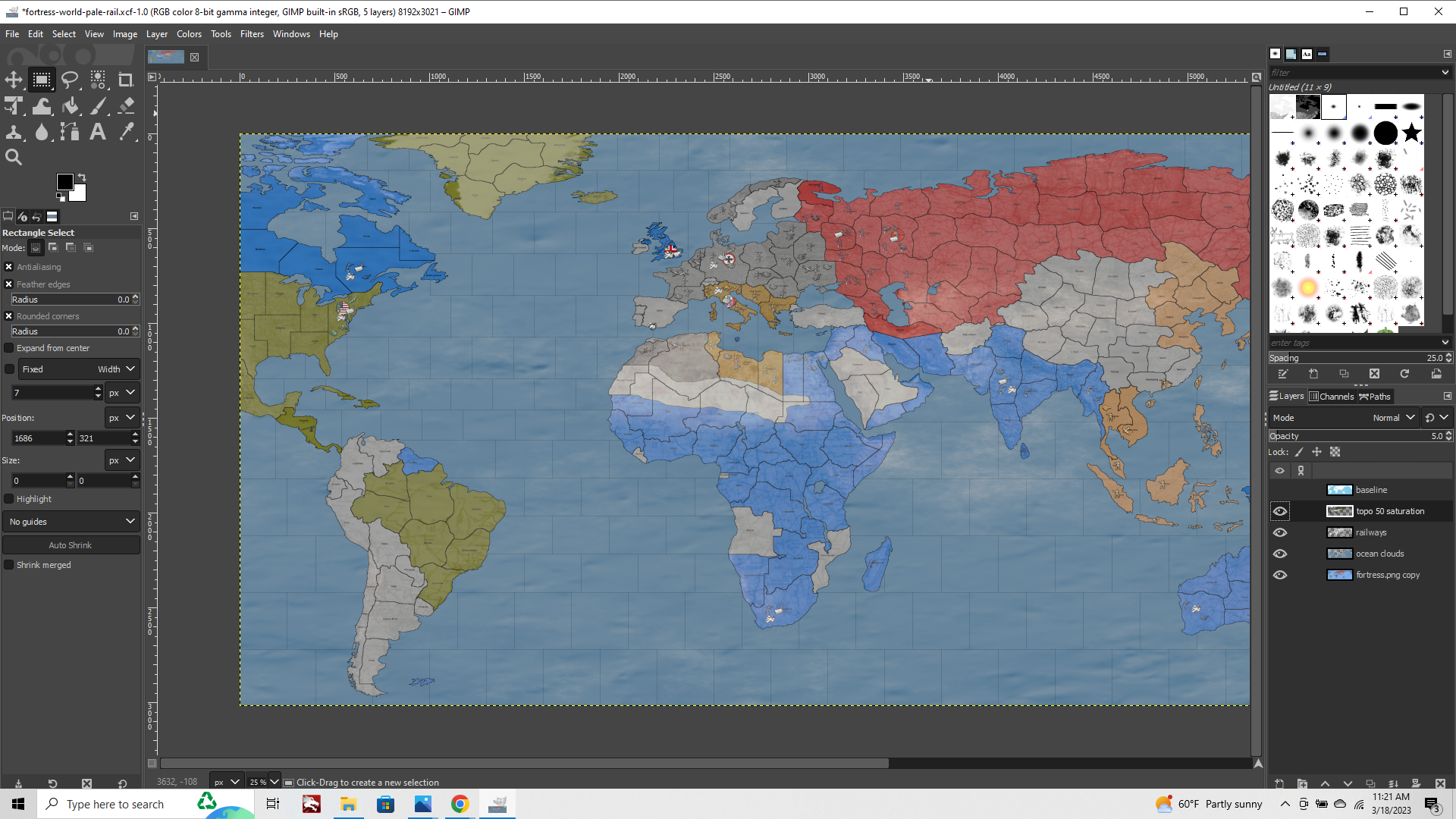

I'd start out by just playing around with the opacity and color levels of the layers till to you find a combo you're into, then use that as a jumping off point.
Oh also, here's a zip with the images I used to created some of those tile pattern abstractions...
You can open these in GIMP once you've got your project fired up and use them to fill out the rest of the rest of your board.
https://www.dropbox.com/s/f1d0o3u7kdeybep/roads and the like.7z?dl=0
Basically I found a vaguely period looking roadmap for some of the main areas, and then used those or details from them to flesh it out with some flips. Tried to give you some variety there, but you can add to it with other abstract images, any image really.
To add a new image to the mix use Image tab > Mode to grayscale/then back to RGB, to quickly desaturate what you copy over, to make it look like the other bw stuff. You can add a little gaussian blur to knock the detail back if you want to make it more subdued and impressionistic. Usually when the opacity is reduced and a little blur is added you can just add as you go tile by tile.
To create the sense of a more general pattern, use the same image multiple times, or doing flips/rotations/scaling.
When you're all done and have the opacity and such dialed the way you want last step is to put the baseline on top, to beef up your border lines, so they don't disappear when zoomed out. You can bring in just the blacks copied from your baseline and lay that on top as the final layer, adding blur if desired to smooth it, like in the post at the head of the thread.
Hopefully that helps a bit. Best of luck dude! and have fun

-
@black_elk They all looks really awesome.
Here is the first relief. I didn't use any layer yet. But I am going to try it.
https://i.ibb.co/jHSpwX7/22.png
IMHO I tend to prefer smooth and less intense reliefs. For example, I liked Arabian relief the most. Maybe other players could prefer more busy reliefs. In the end, it is a matter of taste.
-
@schulz RIght on!
Looking good!
Haha yeah, it's definitely true, I'm still trying to find the feel I like best for G40 myself, but I can't really decide lol. I'm trying for 3 options.
So far I've got a version called Rock, which is more vibrant, with the volume dialed up. Terrain is painted over at a pretty low opacity, aiming at a tripleA classic kinda read. Like it's mostly just the ownership color. The user can change those colors, so I just wanted to give them something true to Hex for that, so it would be easy to work with. The Hex color they enter in the map.props is pretty much the color they'll see painted in-game, or at least that was the idea there.
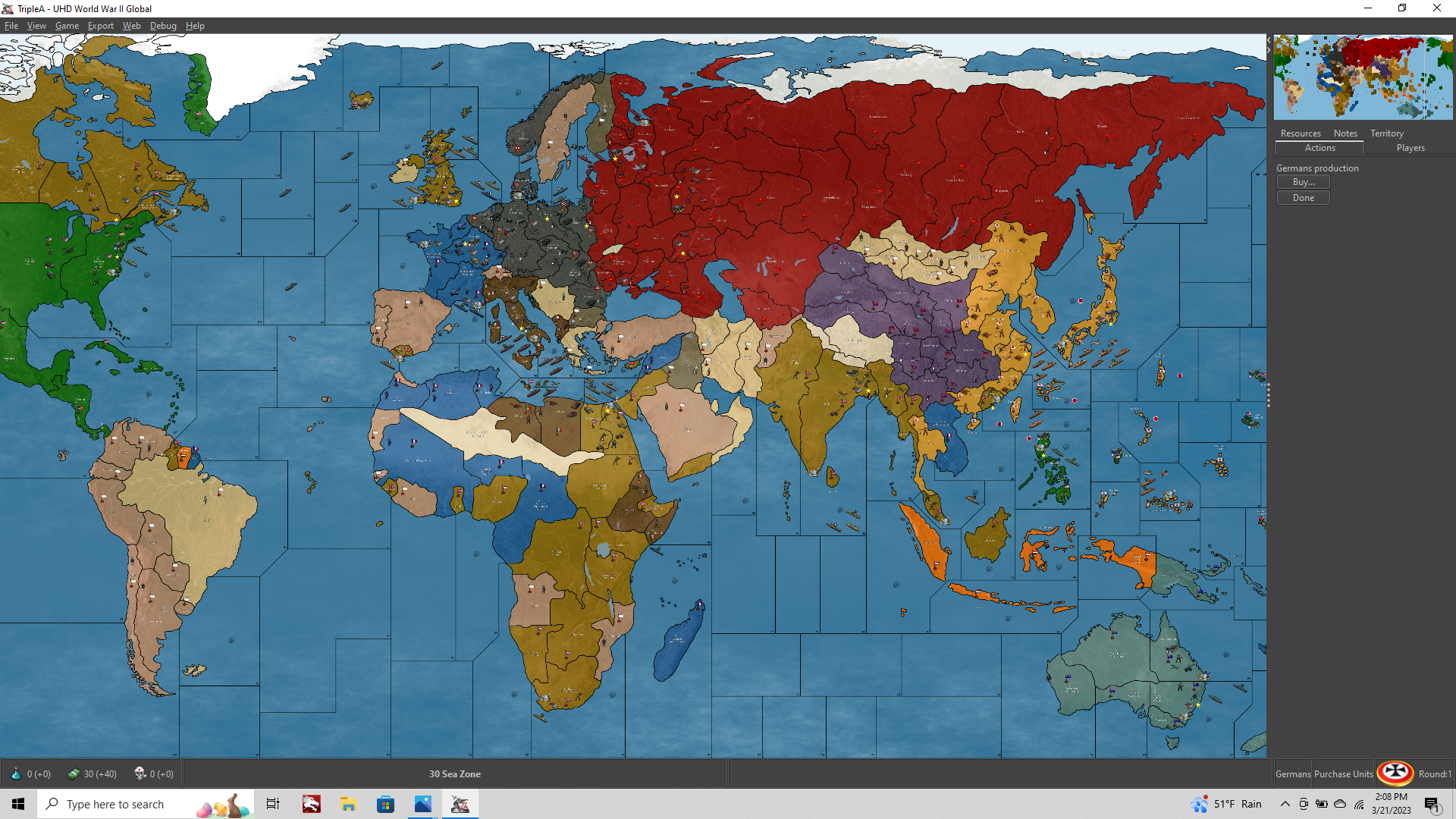
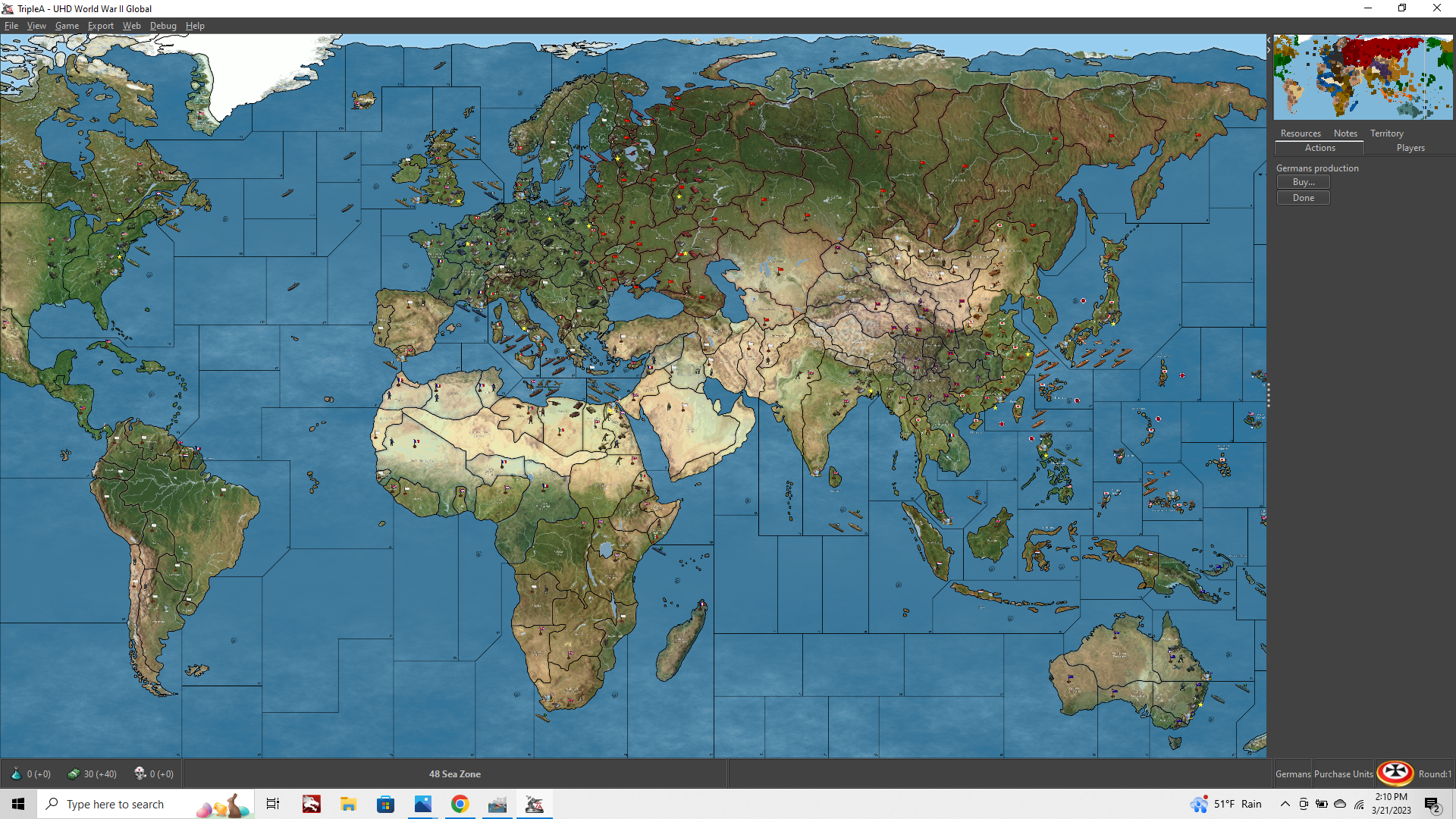
Then I have a version called Paper which is trying to look more like the physical board. Much higher opacity for the under terrain, almost no overpaint, ownership indicated mainly by the control flag marker which functions as a roundel. I'm still trying to dial the levels on that one. To make the Paper/Cardboard what I did was to put the under terrain layer at like 90% opacity, then did a blend on 50% gray with blur around the edges of the beefed up baseline borders. Like coming out a dozen pixels or so with the gray. Then I put that layer at a more reduced opacity, so that only the edges would color over, but just a bit.
I also wanted to complete a trio with a Scissors look too, doing something a bit like the patterning styles in those posts above. Lighter hues, pushing it more pastel from the whites in those reduced opacity railroad images, but it's taking me a while to stitch together lol.
I figure having 3 looks might be cool though, like to cover the bases. Idea would be some kind of cut, where they sorta cycle one into the other like that, Paper to Rock to Scissors, and back again.
Stuff like overall brightness/saturation for the relief is easy enough to adjust, and the ocean blue can be isolated/changed pretty quickly from a baseline with the fuzzy select if people want to go wild with it. Here's an example, same Rock relief as above, but with the brightness increased and saturation decreased across the entire image.
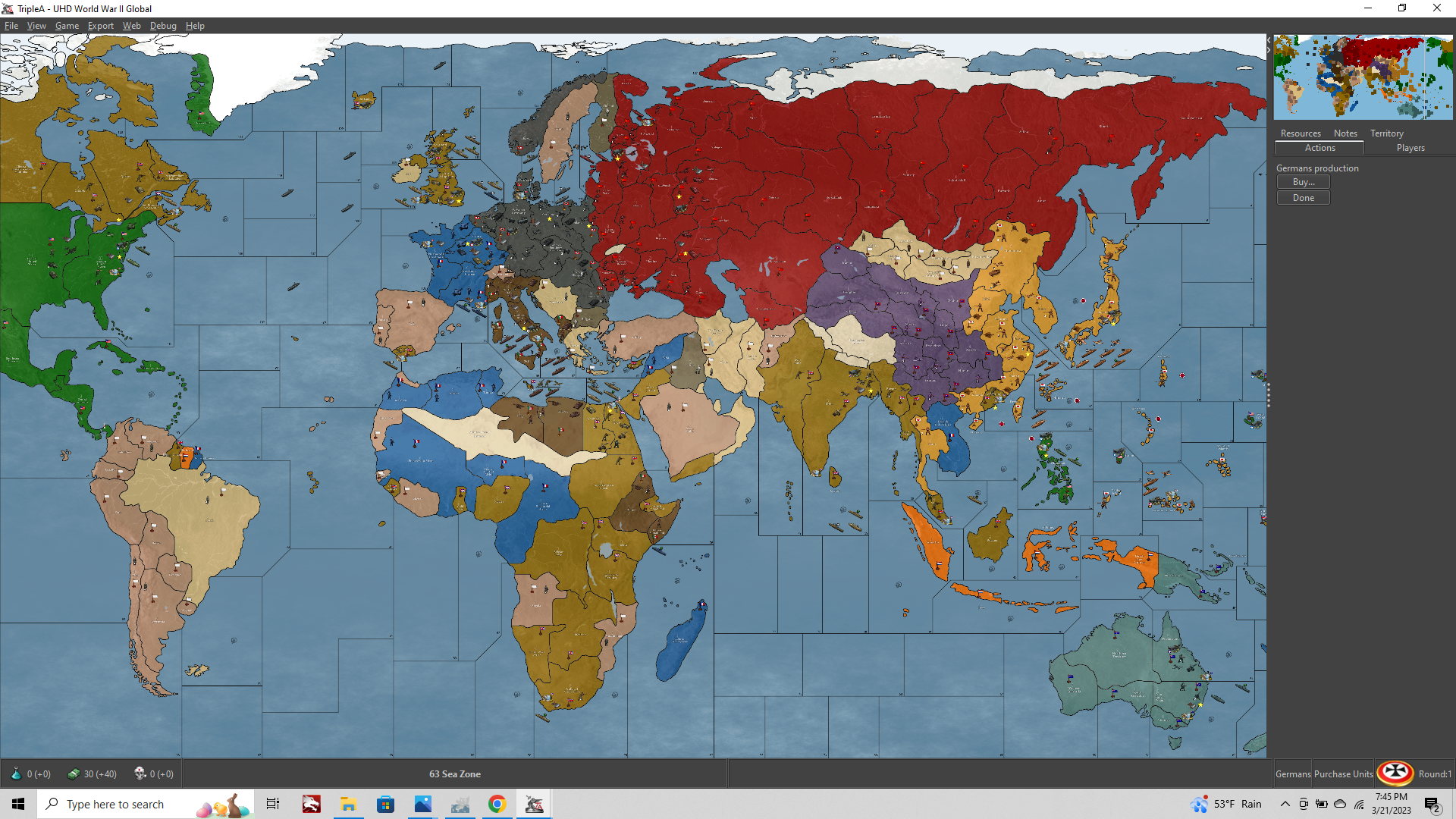
The national ownership colors can be adjusted in the map.properties hex list.
Here's the same image, but just with a slightly different palette of Hex colors and tweak to the levels.
By starting more in the Mids, you can go either direction from there just by tweaking the levels and changing the Hexes to get subtly different looks. It's a little easier to desaturate/remove vibrancy or brightness/contrast from a midrange than it would be to add in after, so I started there. But even after you've completed the relief and collapsed the layers, you can still play with it that way. Like post processing I guess hehe. So sorta giving a starter template in the mid ranges, but where the user can can adjust the ultimate look of the relief by controlling the levels in GIMP. Pushing out to either extreme (or some intermediate sweet spot they like), then rebreak the relief image into their folder to switch looks on the fly. A skin basically. I think that'd be fun!
I'm still trying to learn how to do this stuff as I go. Part of the reason I wanted to write it down was just to help myself remember how to do some stuff, but hopefully might be helpful for others too. So if I think of things while I'm noodling, I'll try to jot a note.
-
https://i.ibb.co/jHSpwX7/22.png
Woukd it be too much work if you could do following things on this relief;
-
The Soviet reliefs are very good. However the contrast between Central and Eastern Europe is a bit too sharp imho. I think they would look nicer if they had the same prominence/color contrast with the rest of Europe.
-
Some territories missing reliefs like the UK, Canada, Papua, Murmansk, Narvik etc. I am personally fine with any reliefs that don't make too much contrast with the other reliefs.
-
-
Looking good! Right on, yeah I wasn't sure what kind of abstract pattern you'd dig most so I was just riffing, Stuff that didn't have an under pattern will show very prominently, cause there's also a change in opacity there as well as texture (if it's not being passed through that extra layer like the other stuff), will change the hue on those spots where I lazed out and make them pop for sure haha. What we can do is use the baseline and the fuzzy select tool to delete the stuff within those tiles, and switch me out for something that gives a more consistent pattern, just so you don't get a wild jump moving from one front to another. If you made any tweaks or adjustments to the relief layers, just save it out as an .xcf project file tab > save as, and I can polish it up for you. My weekend is a little slammed, but sometimes towards the end of the week I can comb over it for you. We'll get you something that feels cool and consistent for the aesthetic you're after. Catch ya in a few dude
-
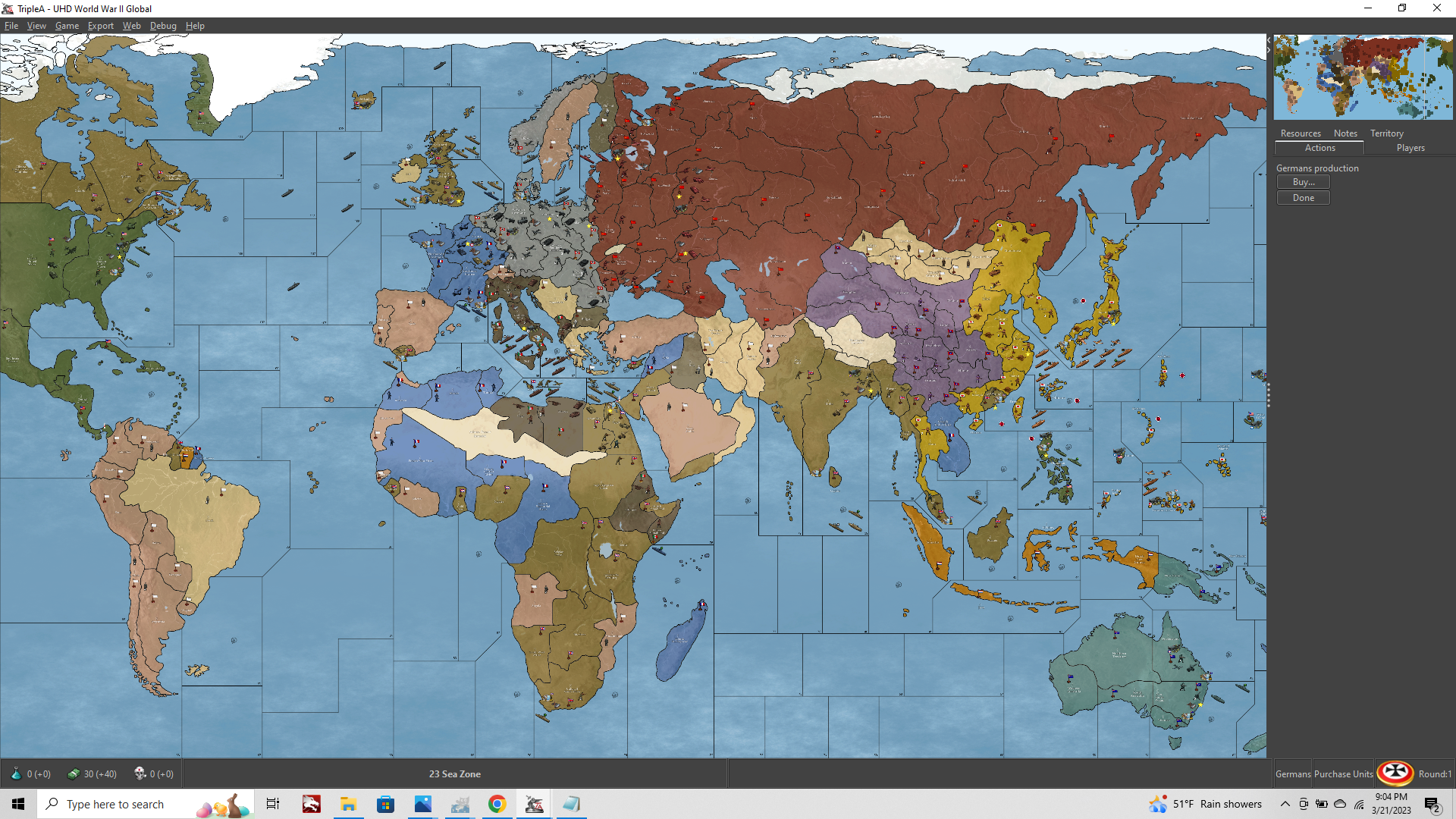
OK real quick cause I just figured this out, but here's another cool way to do a border effect by using the baseline relatively quickly.
Gives a visual like this for the borders when it's painted over... Seemed to work pretty well
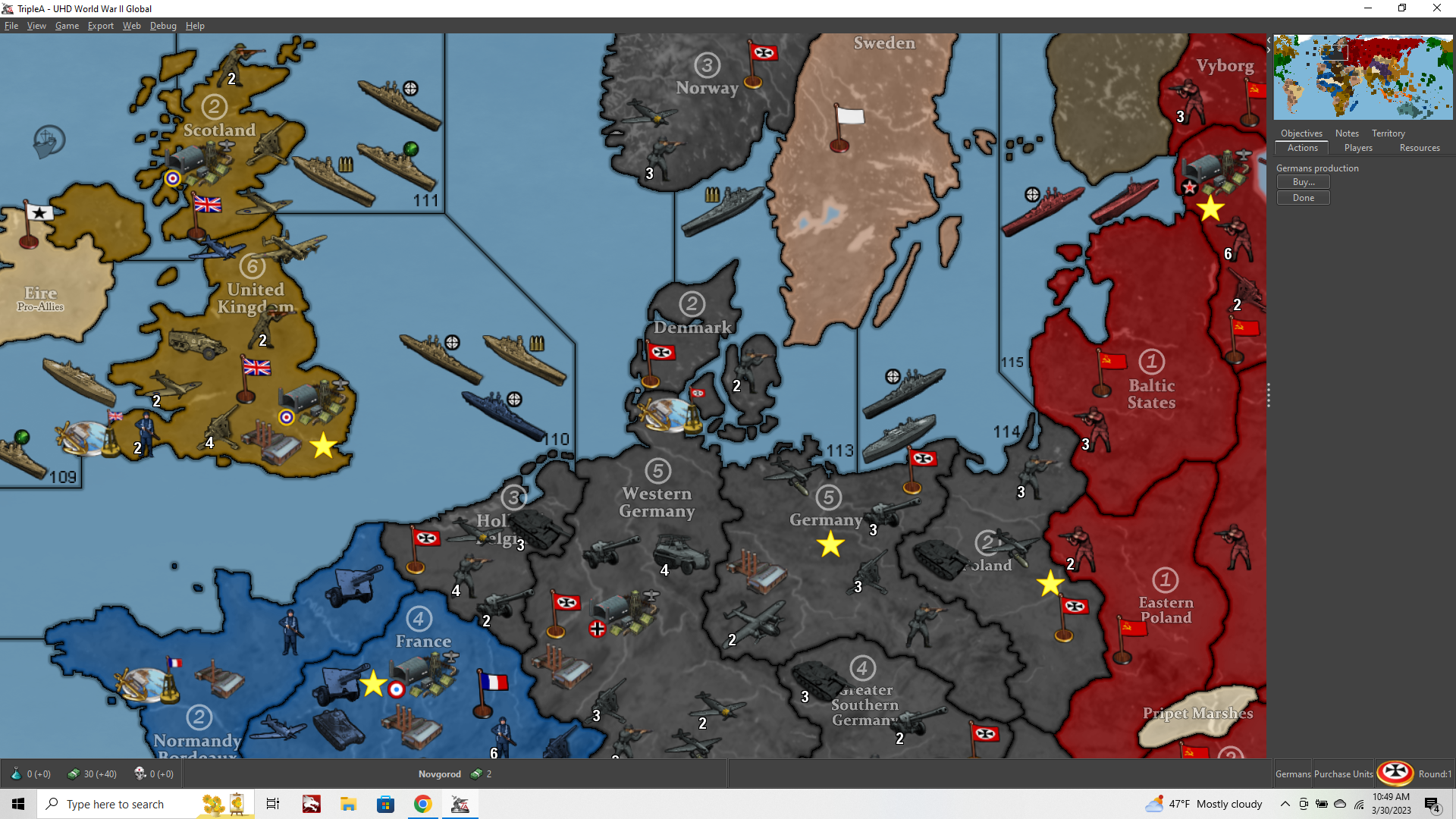
Basically you can get a little bit of the color to bleed into the borderlines from the ocean blue or the painted ownership Hex colors by controlling the opacity of just the black borderlines in a separate layer. This still holds up pretty well when scaling. The lines won't break, similar to the beefier black 5px line, but they'll show through with some color and more of the base, allowing for somewhat thinner borders when the opacity is reduced this way.
Mainly to get the lines to hold integrity at different mapview scales, so they don't dance too much when scaling out especially. It's kind of tricky to show what I mean there with screens, but basically it's where the borderline may appear to vary in width and dance as you drag/scroll around the map within tripleA. So to dial that back, while still allowing for the thinner lines than 3px solid black when zoomed all the way in, you can tool around with the opacity of the enlarged/blurred baseline borders as a separate layer.
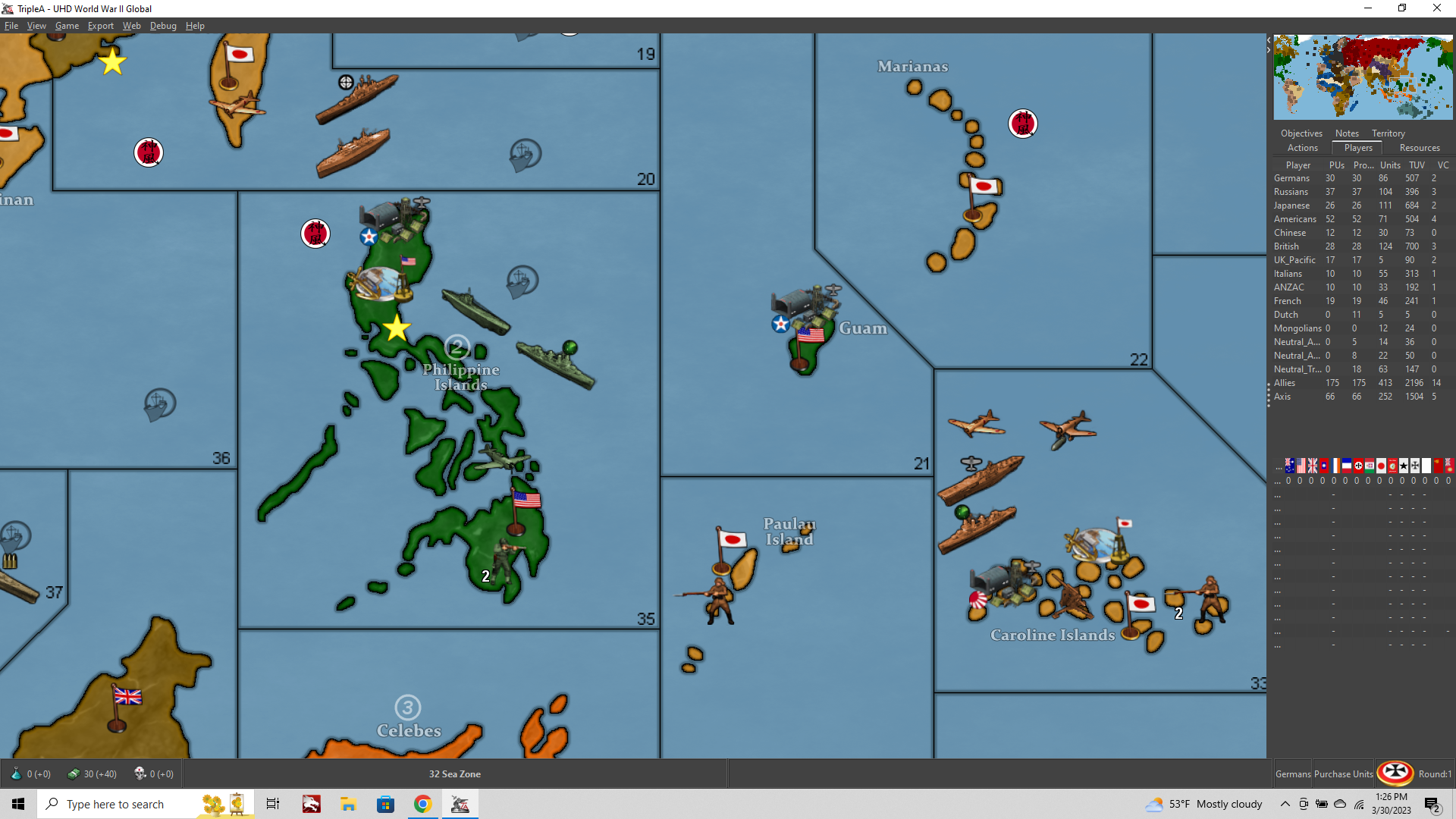
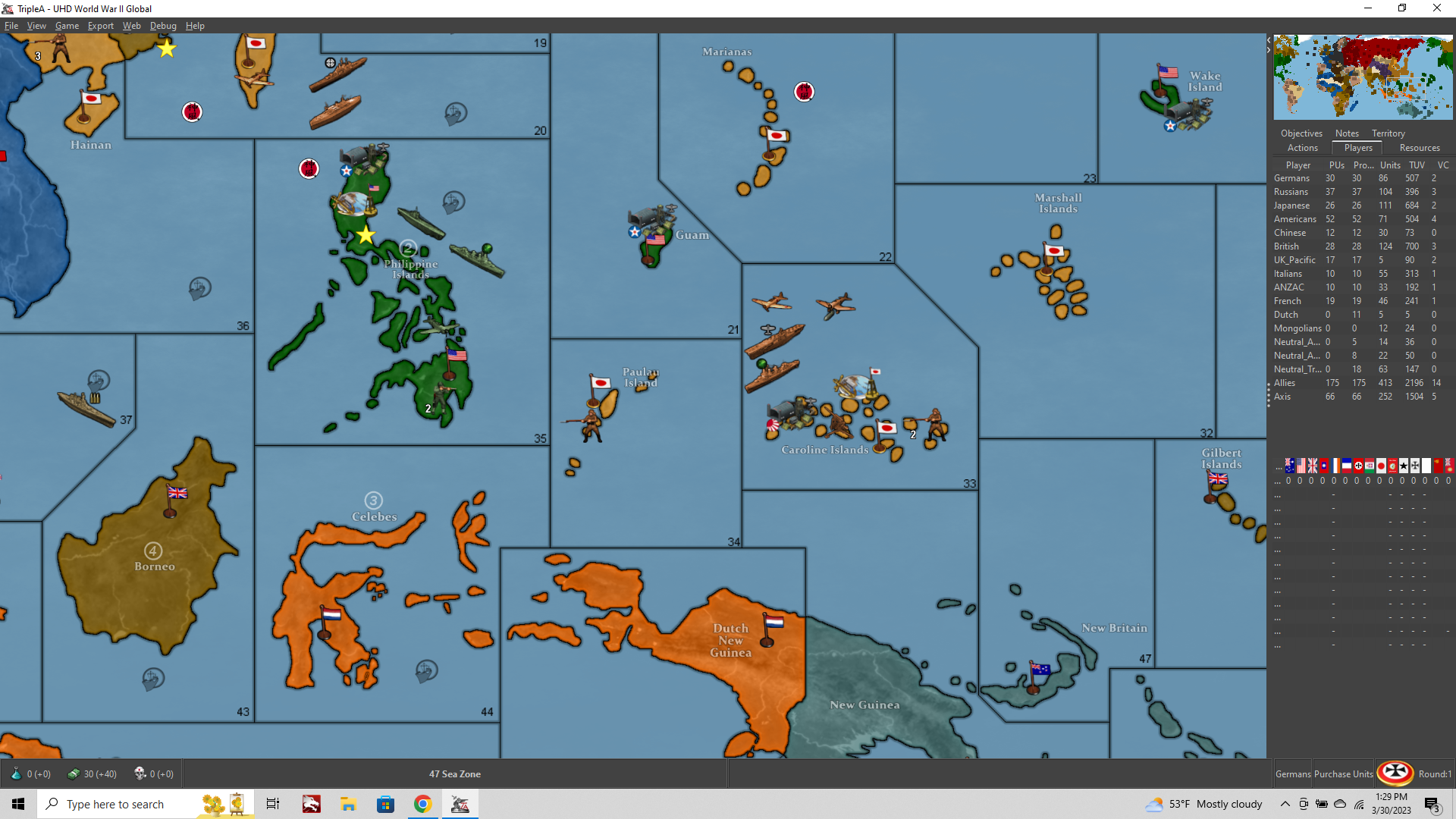
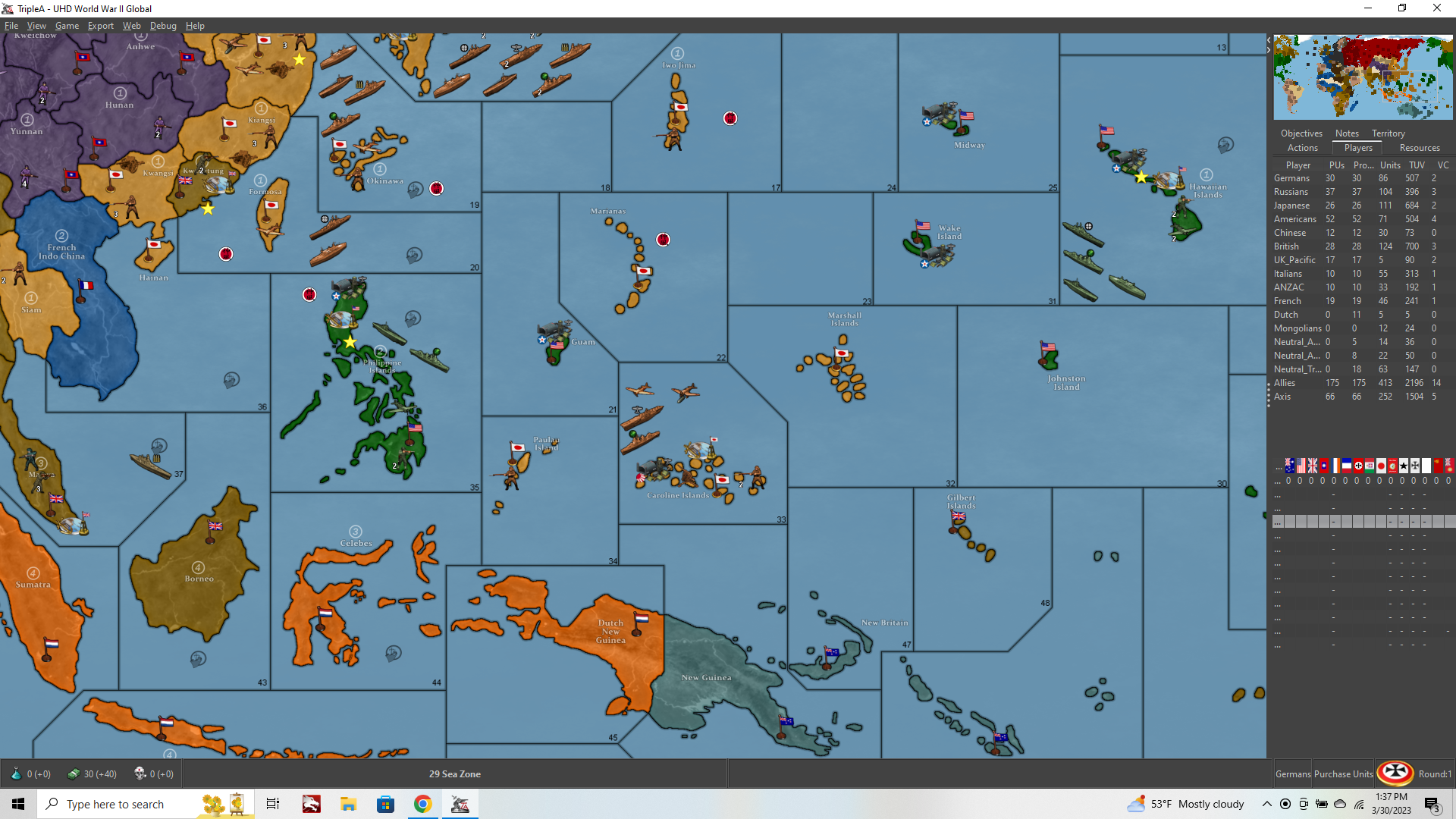
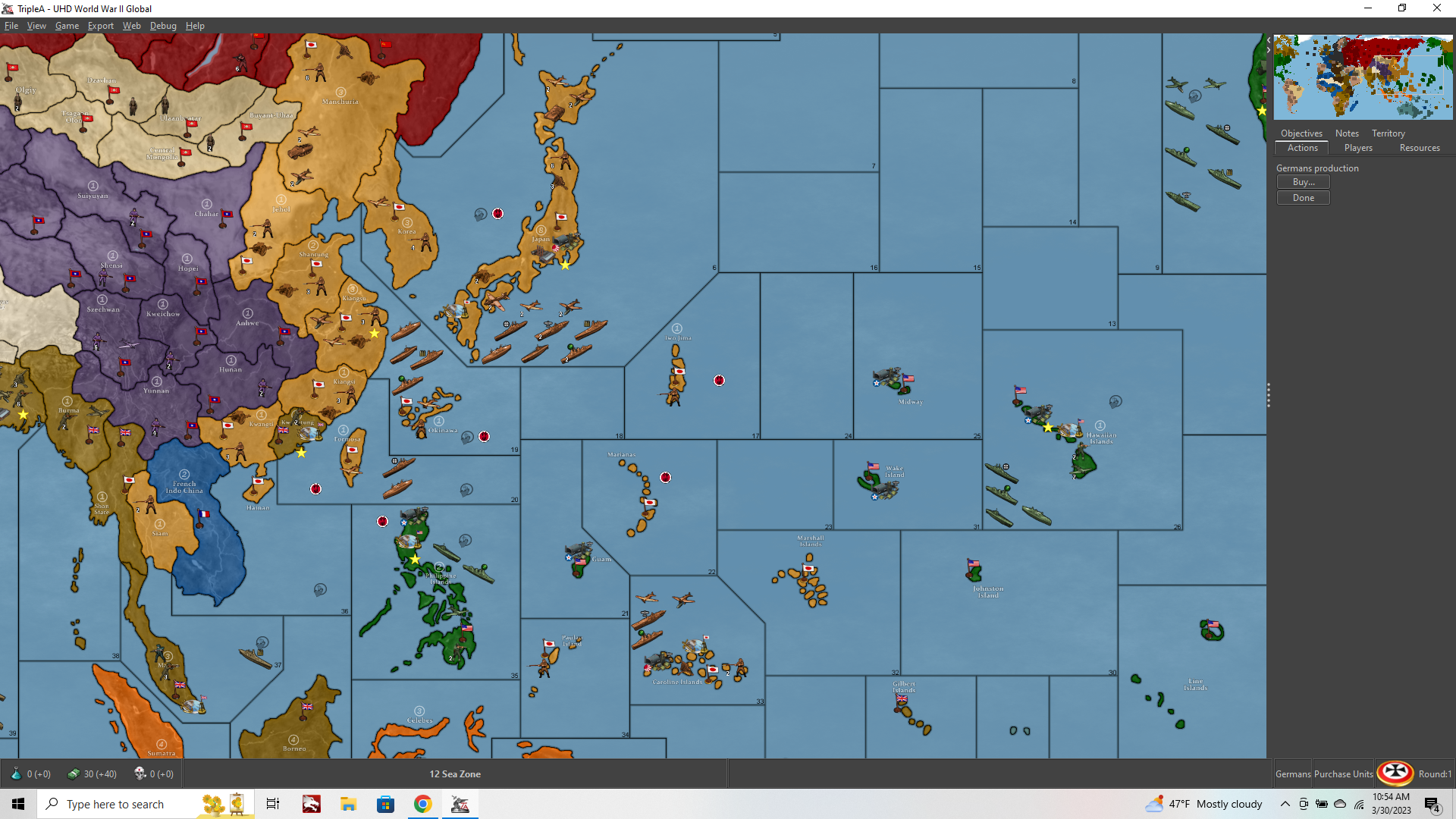
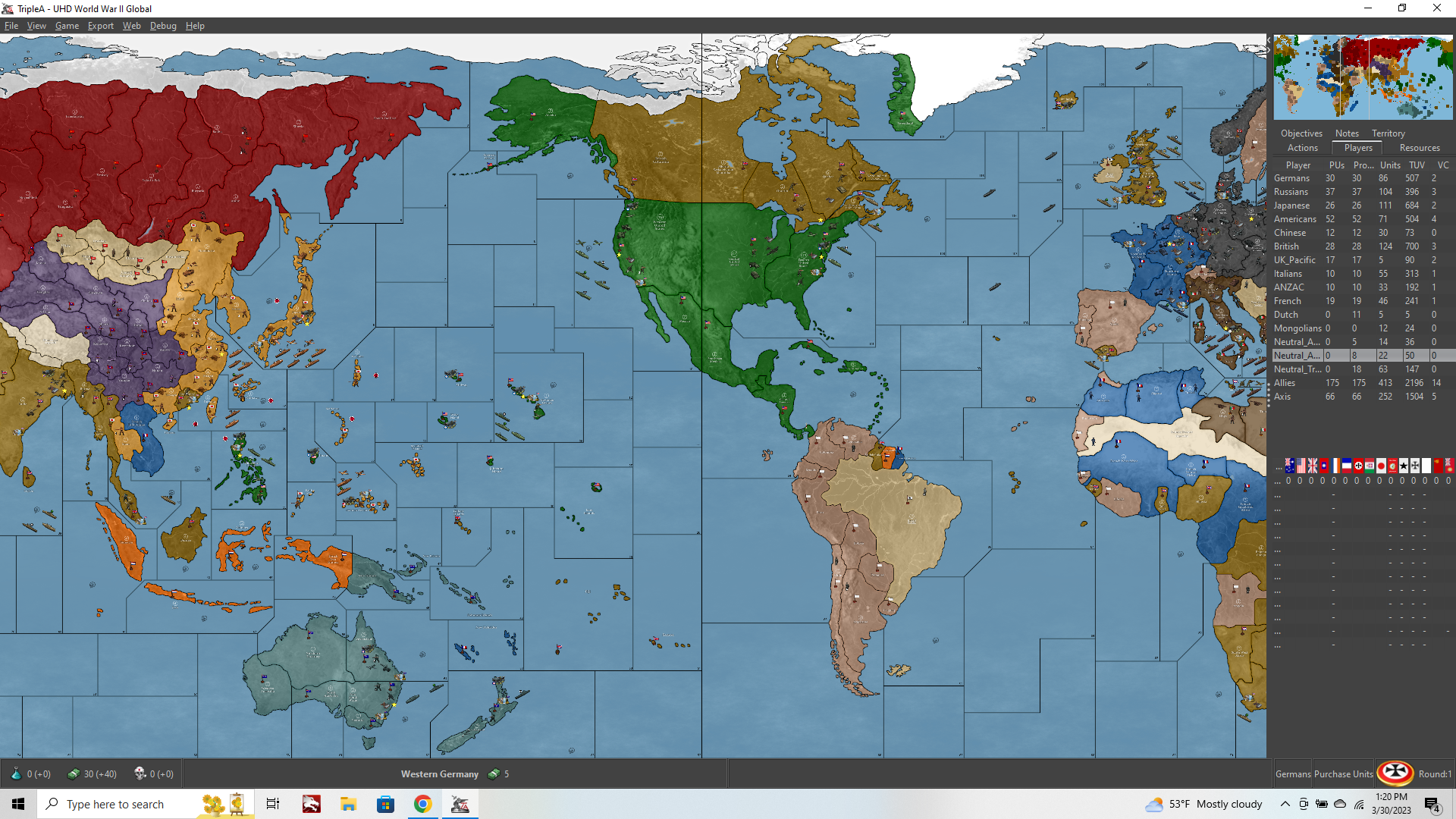
Here's a quick example with screens at a couple different map view scales, so you can see what I mean about how it displays. Starting at 100% at the top and ending at max zoom out at the bottom panning out from Philippines there...
Note that in the first 3 screens the borderlines hold integrity down to about 40% mapview, but as you zoom out further you may start to see a bit of dance, as tripleA is trying to sort it's display for the lines. While you pan around in-game and some lines may present slightly thicker by like 1px when zoomed way out.
In general I think as long as you can get it so that those lines don't break or disappear when zooming/max zoom-out for the survey view that's pretty good.
For a look like that here are the extra steps....
First desaturate the under terrain image completely.
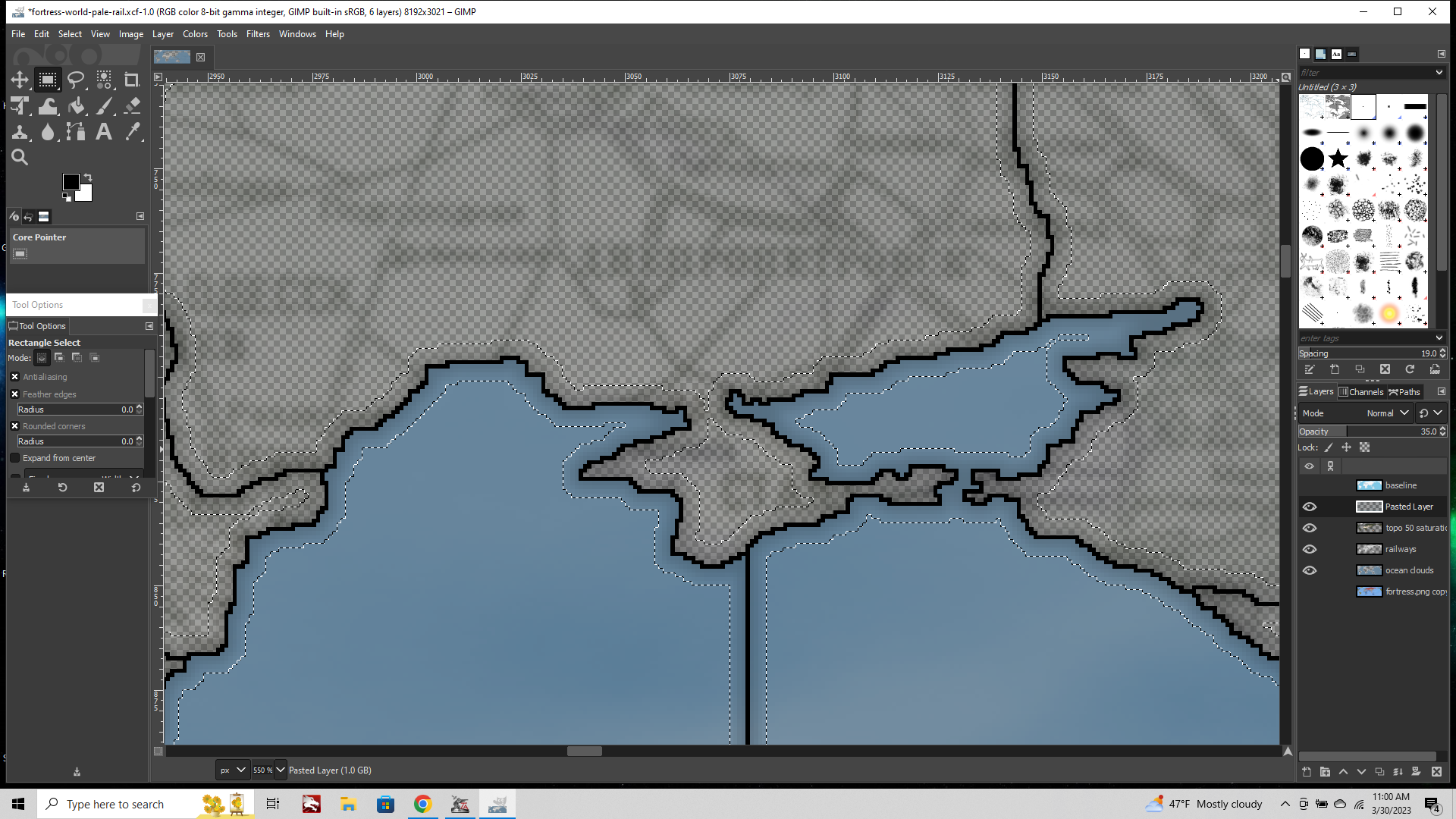
Using the method from the first post we create a 3-5px borderline, by growing the selection from the 1px black baseline on a new layer.
Then grow the selection further by a few pixels and apply gaussian blur 1.5 to it.
Paste those lines in as the top layer and reduce the opacity of that layer to like to 25-50%, depending on how dark/thick you want the border lines.
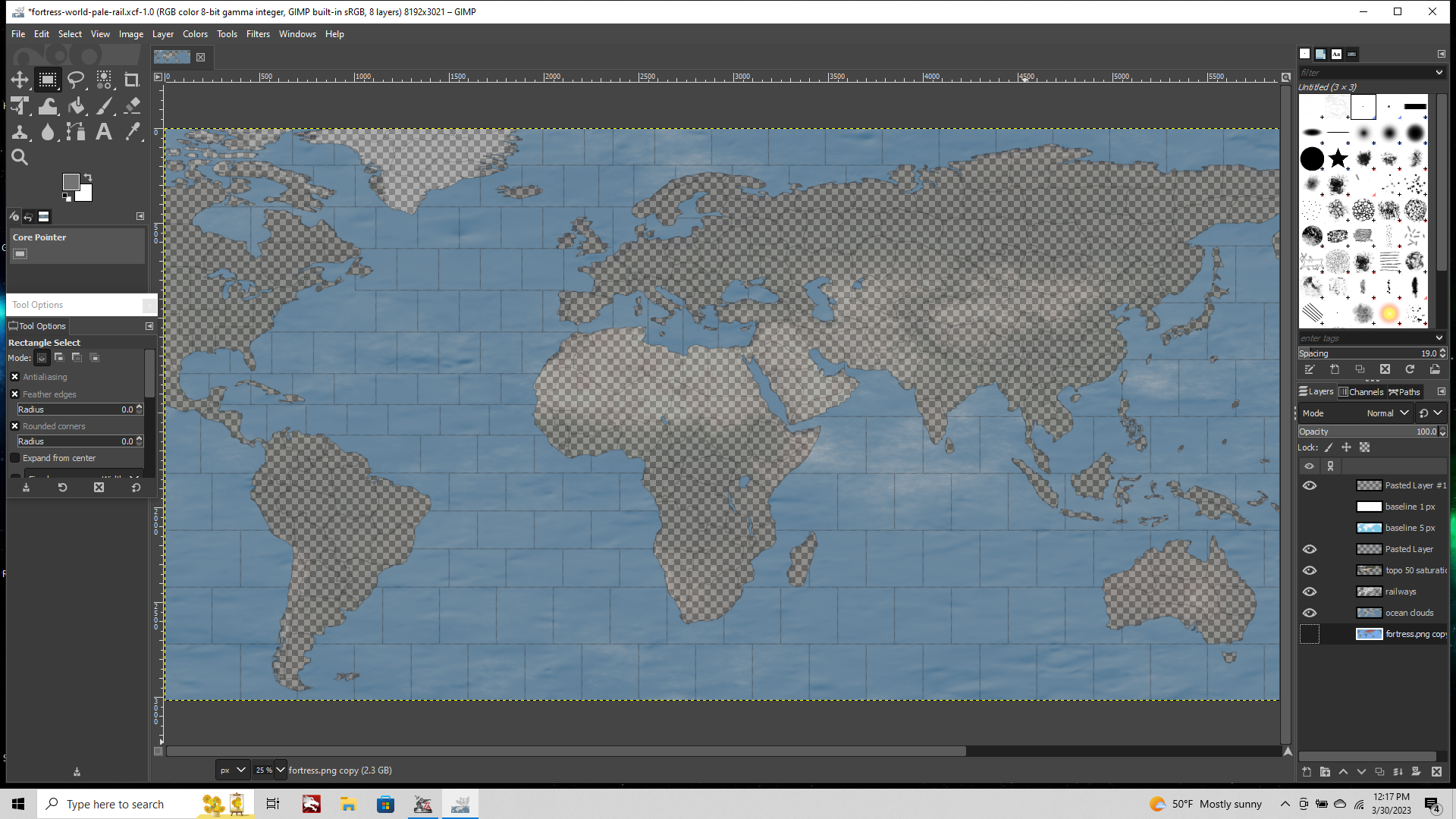
For the patterns by rail, the simplest way to fill out the tiles is just to use your baseline and the magic wand (fuzzy select tool), to create a selection, then switch the layer to the rail pattern.
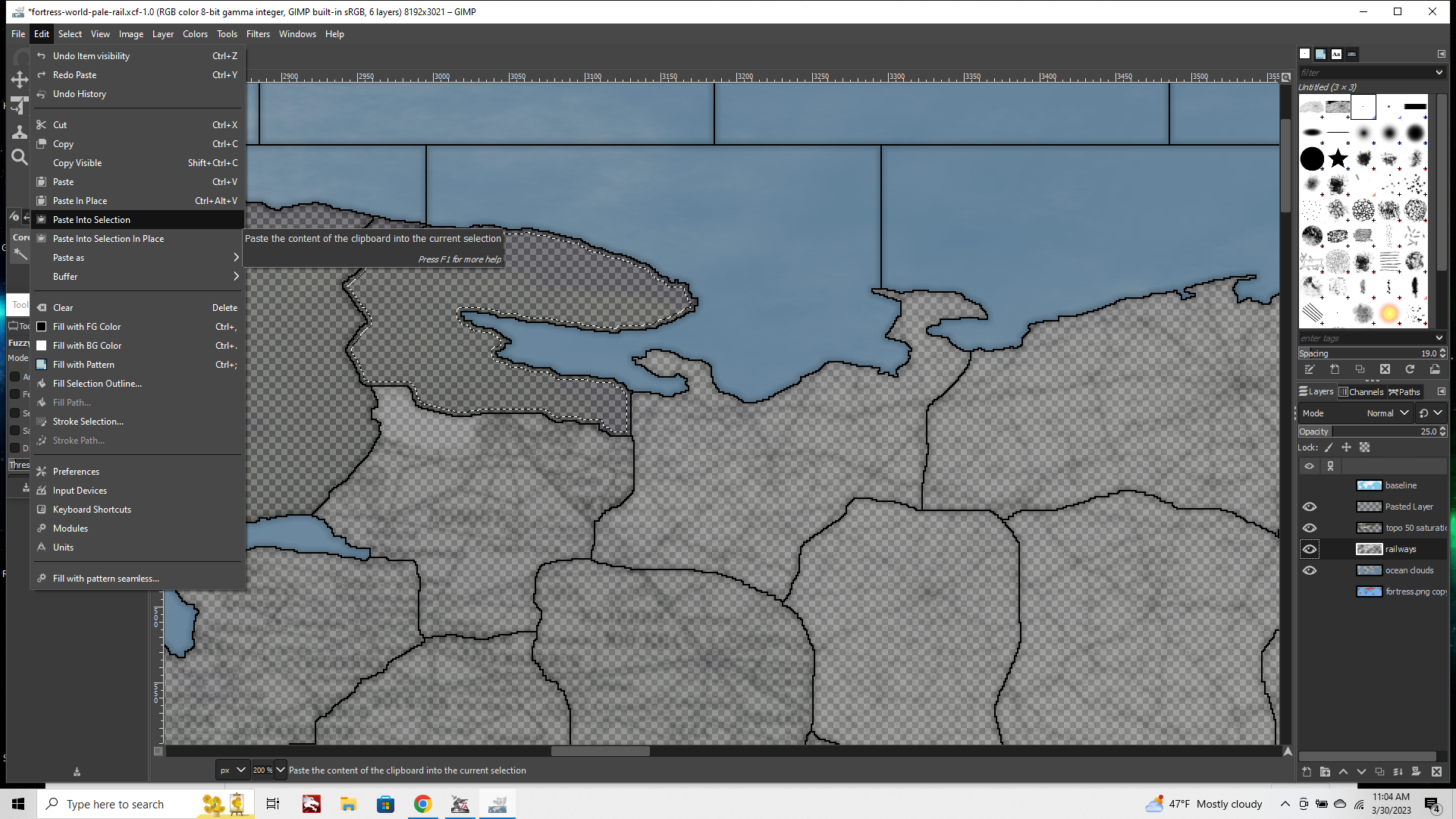
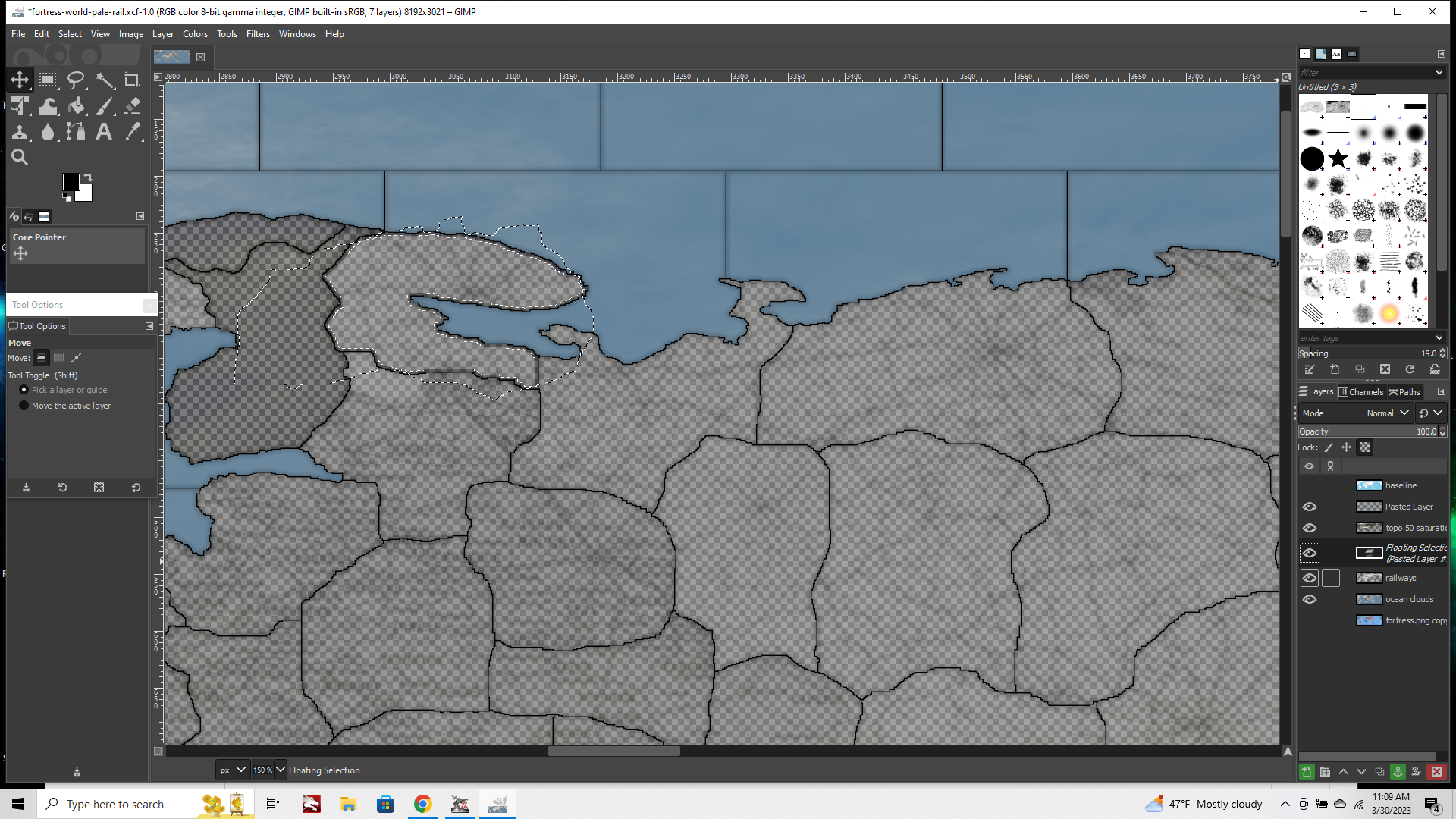
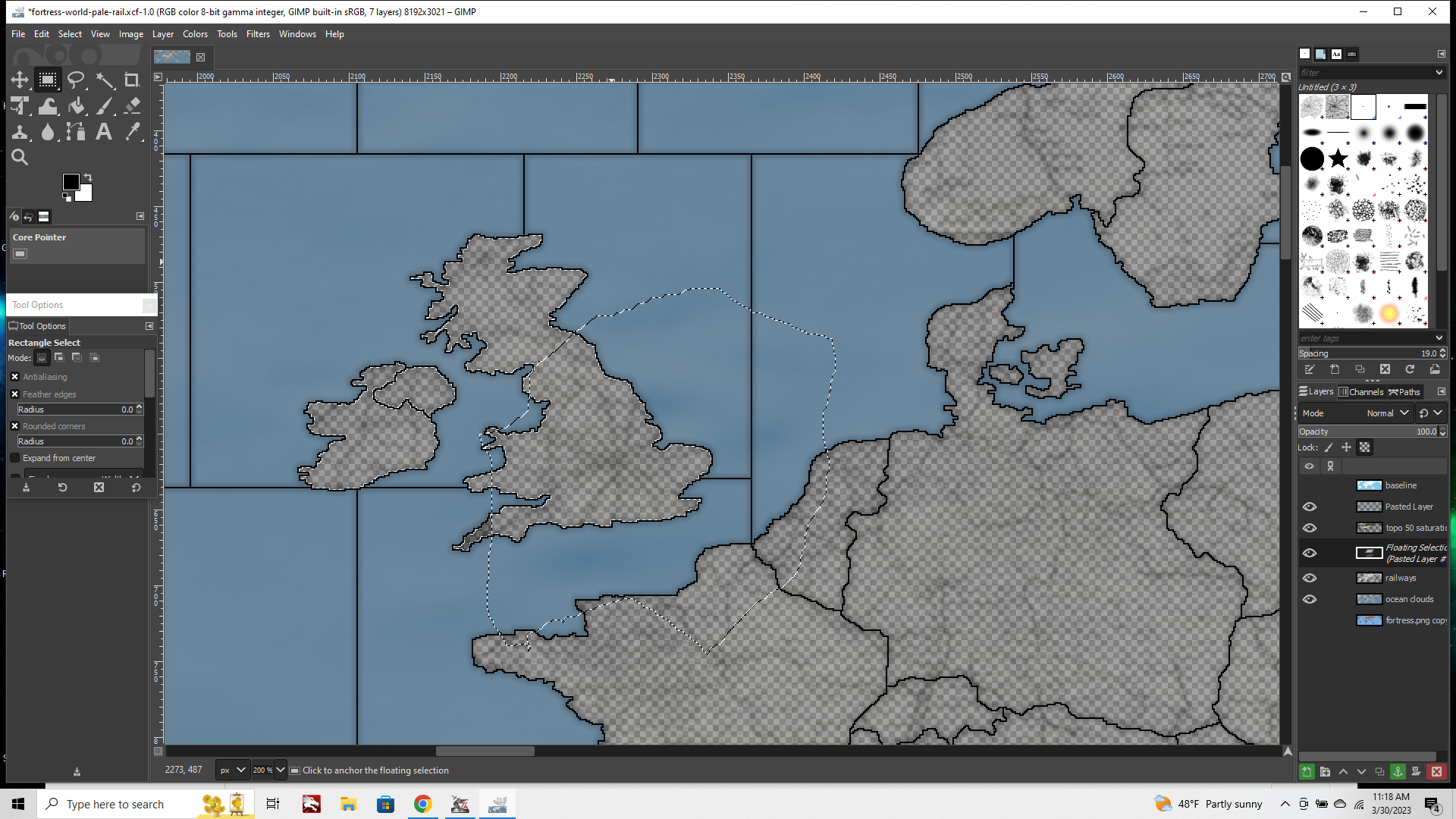
Then use the wand to choose a different tile Edit > paste into selection. So like here you can see I coped a neighboring tile over into the Murmansk TT, then clicked it into that same layer. Then moved over to UK to do the same. Here's some example screens.
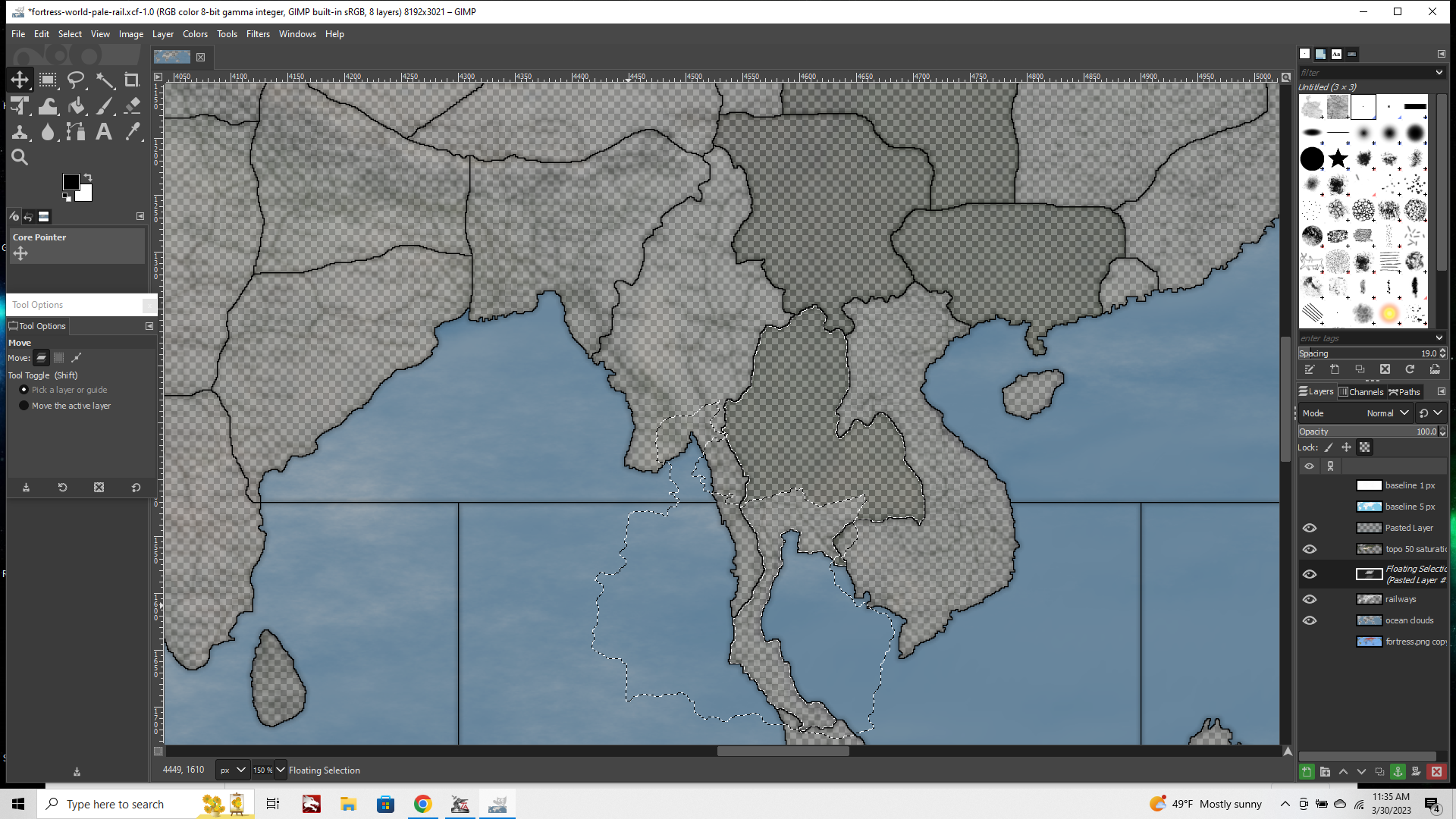
Or like same deal there, painting over Malaya with the stuff from Germany.
If you do paste into selection, then only that stuff will get copied into the layer. So I used the baseline, and eyeball to switch back and forth.
You can hop around like that pasting over to fill in the gaps..
I filled it out for you real quick just using some of the larger tiles. You can probably clean it up a bit if you want to make further adjustments.
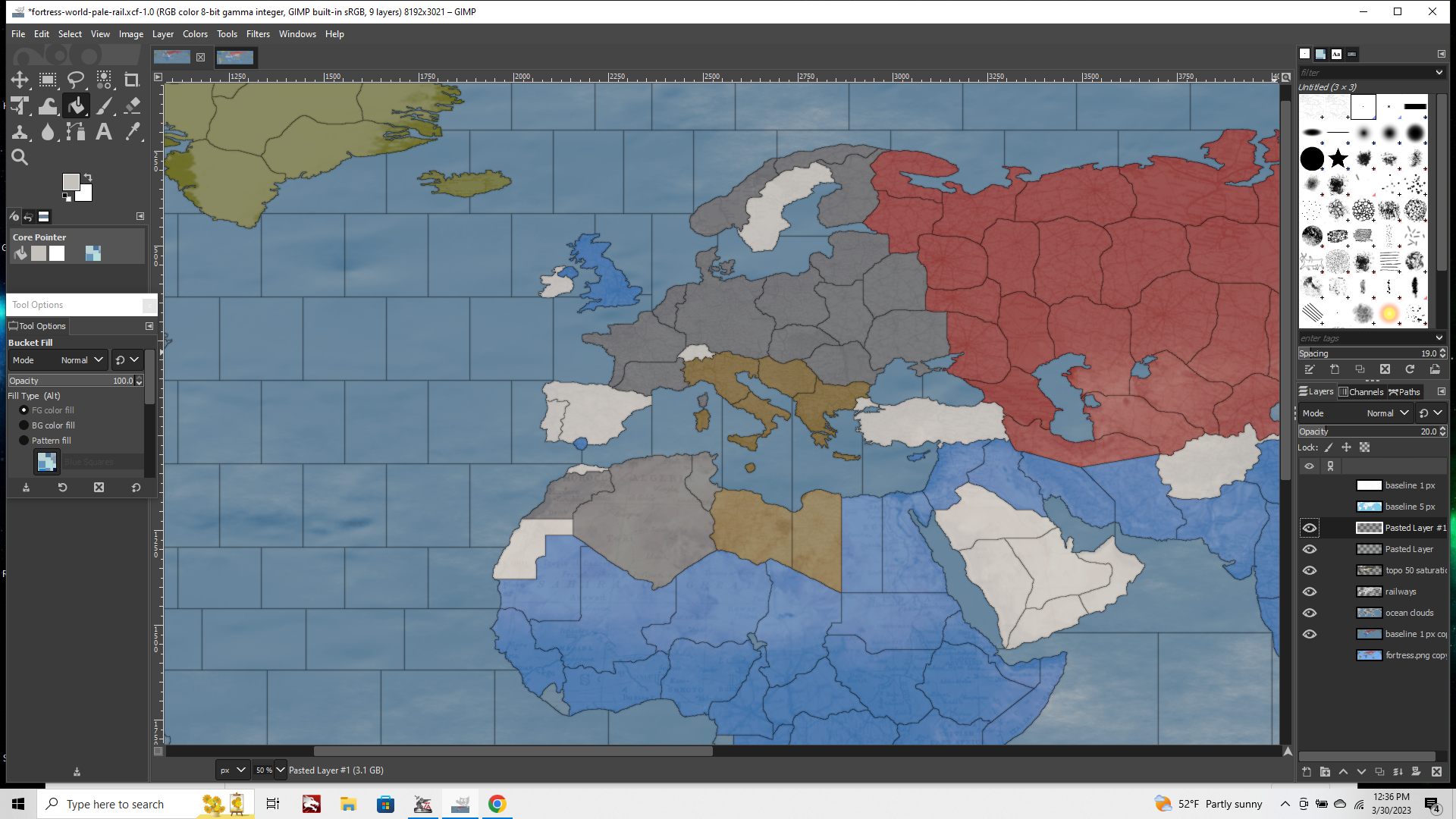
To see how it will present you really need just a color map of your baseline.
Like the baseline filled in with whatever colors you plan to use, but none of the other stuff just the 1px baseline painted out. So you can use that image to preview how it'd look in game.
I tried to make an example based on your color scheme just for a quick detail. You can play with the levels opacity till you got impression like you dig. The size of your map will determine what kind of blend you can get going on the 1px line, like depending on how thick you want the lines to be overall. I would try to plan if off you max zoom in, or whatever the desired playscale in the map zoom.
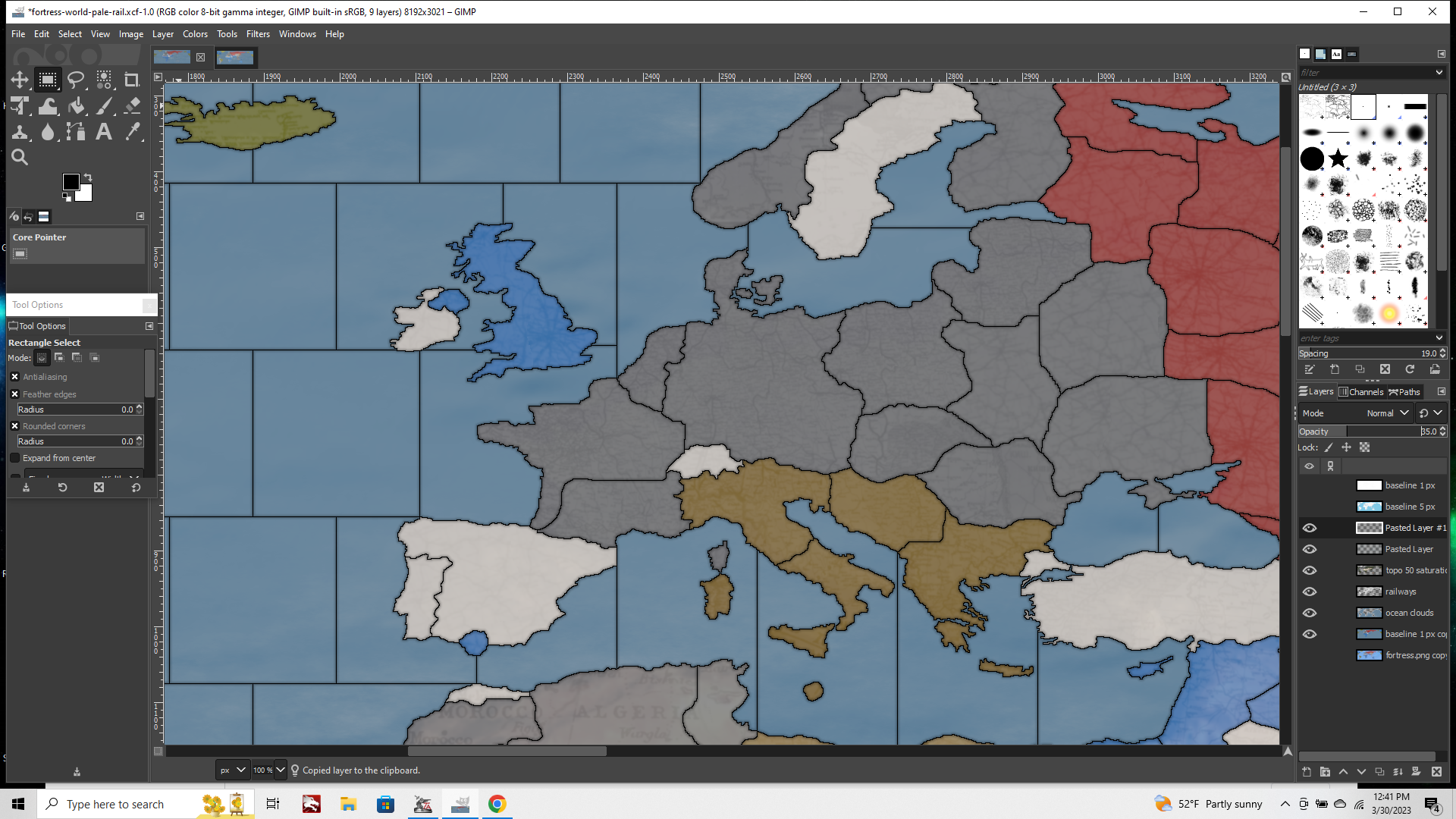
Here's the relief image
https://www.dropbox.com/s/v43ikzyt4susul4/relief_fortress-world.png?dl=0And the .xcf project file again.
https://www.dropbox.com/s/vps6mw75i3izyt6/fortress-world-pale-rail.xcf?dl=0hope that helps
-
@black_elk It is an awsome work. Thank you so much. I've just uploaded the game on Github.
-
 L LaFayette moved this topic from Map Making
-
B beelee referenced this topic

Hello! It looks like you're interested in this conversation, but you don't have an account yet.
Getting fed up of having to scroll through the same posts each visit? When you register for an account, you'll always come back to exactly where you were before, and choose to be notified of new replies (either via email, or push notification). You'll also be able to save bookmarks and upvote posts to show your appreciation to other community members.
With your input, this post could be even better 💗
Register Login